Instructions may have several steps, a shopping list a dozen items, and a project plan even more tasks. You can, of course, write everything as ordinary paragraphs. However, such text quickly becomes more difficult to scan. That is why Writer provides numbered and bulleted lists.
A numbered list works best when the order matters. A bulleted list, on the other hand, helps present items of equal importance. What’s more, Writer can automatically add consecutive numbers and bullets, so you do not have to enter them manually.
Numbered or Bulleted List?
First, it is worth choosing the right type of list. If the order of the items matters, use numbering.
A good example is a set of instructions:
- Open the document.
- Select the text.
- Turn on numbering.
- Save the document.
The reader can immediately see the order in which the steps should be performed. This makes numbering ideal for instructions, procedures, and guides.
A bulleted list works slightly differently. In this case, the individual items do not need to follow a specific order.
For example, you can use it to present program features:
• text editing
• creating tables
• adding images
• exporting to PDF
Each item is equally important. Therefore, using numbers would not provide any additional information here.
How to Create a Bulleted List in LibreOffice Writer?
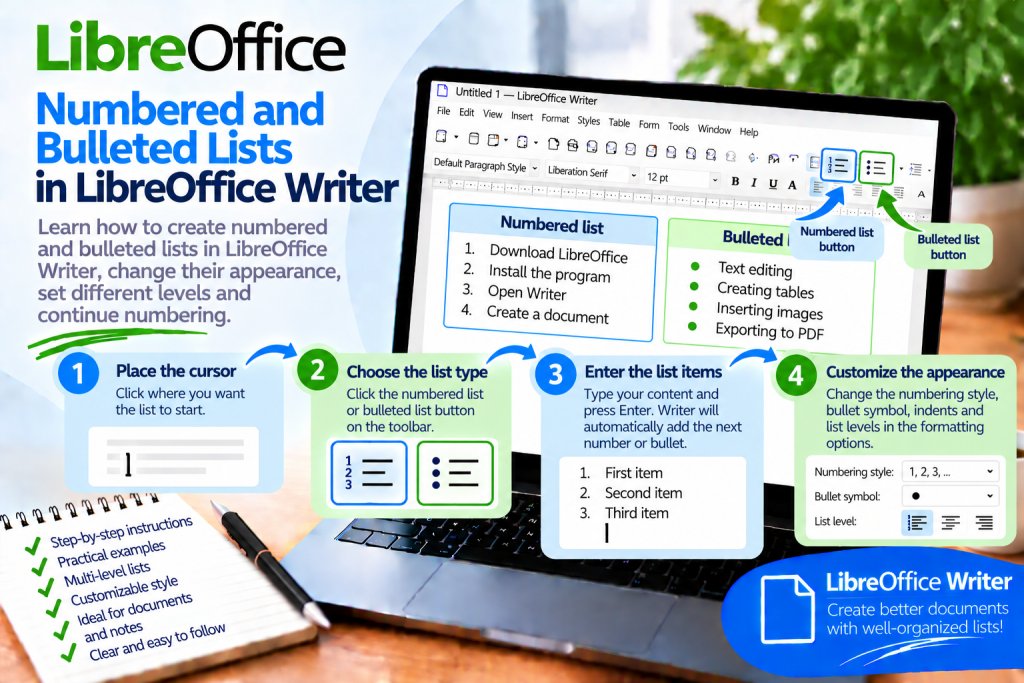
First, place the cursor where you want the list to begin. Then use the bulleted list button on the toolbar.
A bullet will appear next to the first item. Now enter the content, for example:
LibreOffice Writer
After entering the first item, press Enter. Writer will automatically create the next bullet. This allows you to quickly add more items without having to turn on bullets again.
How to Create a Numbered List?
Creating a numbered list works in a similar way. This time, however, choose numbering instead of bullets.
Place the cursor where you want the list to begin, then turn on numbering using the appropriate button on the toolbar. Writer will create the first number.
Enter the content and press Enter. Writer will automatically create the next item.
The list may look like this:
1. Download LibreOffice
2. Run the installer
3. Open Writer
4. Create a document
You do not have to enter consecutive numbers yourself. What’s more, Writer can adjust the numbering when you add new items later.
How to Convert Existing Text into a List?
You do not always have to create a list from scratch. If the text is already prepared, you can convert existing paragraphs.
Suppose the document contains:
Writer
Calc
Impress
Draw
First, select all the paragraphs. Then turn on bullets.
Writer will add bullets to the individual items. This allows you to quickly turn ordinary text into a clear list.
If you choose numbering instead, the individual paragraphs will receive consecutive numbers.
How to Automatically Start a List While Typing?
Writer can recognize certain ways of starting lists. This means that in many situations, you do not even need to use the toolbar buttons.
If you start a paragraph with an appropriate character or number, the program can automatically create a list. This feature is linked to AutoCorrect.
If Writer does not recognize lists while you type, check the automatic formatting settings. The appropriate feature may have been disabled earlier.
Why Should You Avoid Entering Numbers Manually?
Manual numbering may initially seem faster. However, problems appear when you edit the list later.
Suppose you have:
1. Download the program
2. Install the program
3. Run the program
Now you need to add a new step between the first and second steps. If the numbers were entered as ordinary text, you have to manually correct all subsequent items.
Automatic lists solve this problem. Writer manages the numbering, making changes to the structure much more convenient.
How to Add Another Item to a List?
Adding new items is very simple. After entering the current item, press Enter.
Writer will automatically create the next number or bullet. You can then start typing immediately.
This makes even a long list quick to create. In addition, all items retain the same formatting.
How to End a List?
After the last item, press Enter. Writer will create another empty item.
Then press Enter again. Writer will end the list and create a regular paragraph.
You can now continue writing normally. There is no need to manually turn off numbering after every list.
How to Remove a Number or Bullet?
Sometimes an individual paragraph should no longer be part of a list. In this situation, place the cursor in that paragraph and turn off numbering or bullets.
The paragraph content can remain in the document. Only the element responsible for the list structure disappears.
If the problem concerns the last empty item, you can also end the list by pressing Enter again.
How to Create a Multilevel List?
Not every list has to have only one level. Writer also allows you to create subitems.
Suppose you are preparing a training plan:
1. Writer
2. Calc
3. Impress
Under the Writer item, you want to include more detailed topics:
text formatting
tables
styles
First, create another list item. Then move it to a lower level, for example by using Tab.
This creates a hierarchical structure. The reader can immediately see which items are main topics and which belong to them as subitems.
How to Return to a Higher List Level?
When creating a complex list, you sometimes need to return from a subitem to the main level.
In this situation, you can use:
Shift + Tab
The item will move to a higher level. This means you do not have to manually adjust the indentation and numbering.
In practice, Tab and Shift + Tab can significantly speed up work with multilevel lists.
What Are Multilevel Lists Useful For?
Multilevel lists work very well in plans, instructions, specifications, and training materials.
An example structure might look like this:
1. LibreOffice Writer
1.1 Text Formatting
1.2 Tables
1.3 Images
2. LibreOffice Calc
2.1 Formulas
2.2 Charts
2.3 Sorting
This structure makes the relationships between topics immediately clear. In addition, the document becomes much easier to navigate.
How to Change the Appearance of a Bullet?
The standard bullet does not always match the style of the document. Writer therefore allows you to change how the list is displayed.
Right-click inside the list and go to the settings related to bullets and numbering. You can also access the appropriate options from the formatting menu.
Then select a symbol that matches the appearance of the document. You can also customize individual list levels.
However, it is worth keeping things simple. A basic symbol is usually more readable than a decorative character that distracts from the content.
How to Change the Numbering Style?
A numbered list does not have to use only standard numbers.
Writer allows you to use different numbering styles. Depending on your needs, these can include numbers, letters, or Roman numerals.
For example, the main level may look like this:
1
2
3
While subitems can use:
a
b
c
This makes the individual levels easier to distinguish from one another.
How to Change the Character After the Number?
You can also customize how the number is displayed.
For example, a list may look like this:
1. First step
or:
1) First step
Both versions are clear. The most important thing, however, is consistency.
If you use one numbering style throughout the document, use it for subsequent lists as well. This makes the document look more professional.
How to Change List Indentation?
Sometimes the number is too far from the margin. At other times, there is too much space between the bullet and the text.
Do not correct this by adding multiple spaces. Instead, use the list and paragraph settings.
This allows you to control the position of the number, bullet, and actual text. As a result, all items will maintain the same alignment.
Why Should You Avoid Using Spaces to Position a List?
A few extra spaces can visually move the text. However, this solution is not very stable.
After changing the font or page width, the layout may look different. Problems may also occur when exporting the document to PDF.
It is therefore better to use proper indentation. This makes the layout much more predictable.
How to Continue Previous Numbering?
Imagine that the first part of the instructions ends like this:
1. Download LibreOffice
2. Run the installer
Several regular paragraphs appear later. You then want to continue the instructions from number 3.
Writer allows you to continue previous numbering. This means you do not have to enter the appropriate number as ordinary text.
If the program has created a new list, use the command that allows you to continue the previous numbering.
How to Start Numbering from a Different Value?
Not every list has to start with 1.
Sometimes a new section of the document should start, for example, with number 6. In this case, you can change the starting value of the numbering.
The subsequent items will be recalculated accordingly. This means you can continue using an automatic list instead of manually entered numbers.
How to Restart Numbering from 1?
The opposite situation is also possible. The first set of instructions ends at number 8, but the next chapter should contain an entirely new list.
In this case, restart the numbering.
The first item in the new list will receive number 1. The following items will then be numbered automatically.
This solution is particularly useful in documents containing several independent sets of instructions.
How to Convert a Bulleted List to a Numbered List?
You do not need to delete the existing list.
First, select the bulleted list. Then apply numbering.
Writer will change how the items are marked, while their content remains in place.
Similarly, you can convert a numbered list into a bulleted list. This is particularly convenient when you realize while editing the document that the order of the information is not important.
Can a List Be Placed Inside a Table?
Yes. A numbered or bulleted list in LibreOffice Writer can also be placed inside a table cell.
This solution is useful, for example, when creating comparison tables. Instead of entering several features in one long sentence, you can present them as separate items.
This makes the contents of the cell much easier to read.
How to Create a List in a Table Cell?
First, click the appropriate cell. Then turn on bullets or numbering.
Enter the first item and press Enter. Writer will create the next item within the same cell.
If the table is narrow, pay attention to indentation. Too much spacing can leave very little room for the actual content.
How to Create a Simple Task List?
A bulleted list can also be used as a simple checklist.
For example, you can create:
□ Download the document
□ Check the data
□ Make corrections
□ Save the file
□ Send the document
If you need a specific symbol, select the appropriate character in the bullet settings.
You can then print the document. This allows individual tasks to be marked manually after they are completed.
How to Keep Multiple Lists Consistent?
In a short document, manually configuring a few lists is usually not a problem. However, the situation is different in a report that is dozens of pages long.
One list may accidentally have different indentation, while another may use a different numbering style. As a result, the document begins to look inconsistent.
Writer provides styles that help manage the appearance of lists.
You can open the Styles panel using:
F11
Then go to the category related to list styles.
Why Use List Styles?
Styles are particularly useful in larger documents.
Suppose a report contains twenty similar lists. If you format each one separately, changing their appearance later may require many manual corrections.
Styles make it easier to maintain consistent formatting rules. They also reduce the risk of accidental differences between different sections of the document.
This is why styles are worth using in instructions, reports, academic papers, and technical documentation.
Numbered Lists vs. Heading Numbering
These are two different functions.
A regular numbered list works well for instructions:
1. Download the file
2. Open the document
3. Enter the data
However, a structure such as:
1 Introduction
1.1 Installation
1.2 Configuration
2 Using the Program
should use headings and their numbering mechanism.
This is particularly important in larger documents. Proper heading styles make it easier to create an automatic table of contents later.
Bulleted List vs. a Symbol Entered from the Keyboard
You can manually insert a bullet symbol before each paragraph. Visually, the result may resemble a list.
However, Writer will treat such a symbol as an ordinary text character. As a result, you lose automatic management of levels, indentation, and list structure.
Therefore, use the proper bullet function. This will make the document easier to edit later.
What to Do When Enter Does Not Create Another List Item?
First, check whether the current paragraph actually belongs to a list.
If the number or symbol was entered manually, Writer may treat it as ordinary text. In this case, turn on actual numbering or bullets.
Then press Enter again. The program should create another item.
If the problem concerns automatic list recognition while typing, also check the AutoCorrect settings.
What to Do When Numbering Starts Over?
Sometimes Writer may treat the next section as a new list. As a result, the numbering starts again from 1.
Do not manually correct all the numbers. Instead, use the function for continuing previous numbering.
This allows you to preserve the automatic list structure. In addition, adding and removing items later will be much easier.
What to Do When a Subitem Is at the Wrong Level?
Place the cursor in the problematic item.
If the item should be nested more deeply, move it to a lower level. If it should return to the main list, move it up one level.
When working with the keyboard, Tab and Shift + Tab are helpful.
After changing the level, also check the number and indentation. This will help you quickly notice any errors.
How to Use Lists Correctly in an Article or Report?
A list should primarily make the text easier to read.
If you are presenting several equivalent items, use bullets. When describing a sequence of steps, use numbering.
However, it is not a good idea to turn the entire document into one huge list. If an individual item requires several paragraphs of explanation, it is often better to create a separate heading.
This helps the document maintain a clear structure.
What Is the Fastest Way to Create a Numbered or Bulleted List?
If the text does not yet exist, place the cursor and turn on numbering or bullets. Then enter the first item.
After pressing Enter, Writer will automatically create the next item. This allows you to continue writing immediately.
If the text is already prepared, select the appropriate paragraphs and apply the desired list type.
To create additional levels, you can use Tab. Shift + Tab, in turn, helps you move back up one level.
Most Common Mistakes When Creating Lists
The first problem is entering numbers manually. It may look correct at first, but later editing becomes much more difficult.
Another mistake is using spaces to set indentation. Instead, use the list and paragraph settings.
You should also avoid using a regular list to create chapter numbering. In larger documents, use the appropriate heading styles.
It is also worth remaining consistent. If similar information uses the same bullet style, the document is easier to navigate.
Numbered and bulleted lists in LibreOffice Writer allow you to quickly organize information without manually entering consecutive numbers or symbols. Use numbering primarily when the order matters. Bullets, on the other hand, work well for items of equal importance.
Writer automatically creates subsequent items when you press Enter. You can also change levels, continue previous numbering, and customize the appearance of symbols and indentation.
For larger documents, it is also worth using list styles. They make it easier to maintain consistent formatting throughout the entire file.
The most important thing is to use the actual list mechanism instead of manually entering numbers, bullets, and spaces. This keeps the document clear and makes later editing much less time-consuming.