Not every diagram needs to be created in a separate graphics program. Sometimes a rectangle, a few arrows, and short descriptions are enough to show the sequence of steps, relationships between elements, or how a particular feature works.
In LibreOffice Writer, you can draw these elements without leaving your document. The program provides lines, geometric shapes, arrows, callouts, and other objects that you can freely format.
What’s more, if you need a more complex design, you can use LibreOffice Draw.
In this guide, you will learn how to insert shapes in LibreOffice Writer, change their appearance, add text, connect elements in a diagram, and take advantage of the features available in Draw.
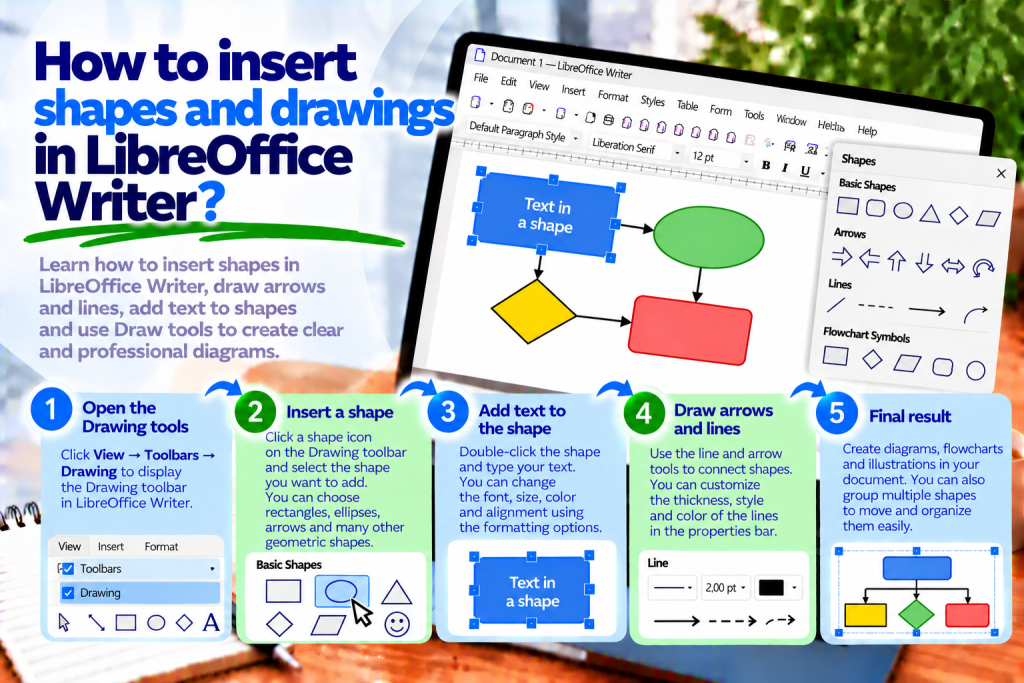
How to Insert Shapes in LibreOffice Writer
First, open the document where you want to place a drawing.
Then enable the toolbar used to create graphic objects.
To do this:
- From the top menu, select View → Toolbars.
- Enable the Drawing toolbar.
- Find the icon for the appropriate shape.
- Click the selected tool.
- Drag the mouse across the document page to draw the shape.
When you release the mouse button, Writer will create the object.
You can now change its size, color, and position.
This allows you to create a simple graphic element without using an additional program.
Where Is the Drawing Toolbar?
The Drawing toolbar contains tools for creating and editing objects.
Depending on your LibreOffice configuration, it may appear along the bottom edge of the window or elsewhere in the interface.
If you cannot see it, open View → Toolbars → Drawing.
The toolbar includes tools for creating lines, rectangles, ellipses, arrows, and other shapes.
This keeps the most frequently used elements within easy reach.
How to Draw a Rectangle
Rectangles are useful for creating frames, information boxes, and flowcharts.
First, select the Rectangle tool.
Then click where you want one of the shape’s corners to appear.
Hold down the mouse button and drag the pointer.
Release the button when the rectangle reaches the desired size.
Writer will draw the rectangle.
If you want to create a square, hold down Shift while drawing.
This keeps all sides the same length.
How to Insert a Circle or Ellipse
Circles and ellipses are often used in diagrams and educational materials.
On the Drawing toolbar, select the Ellipse tool.
Then drag the mouse to determine the size of the shape.
If you want a perfect circle, hold down Shift while drawing.
After creating the object, you can change its color, border, and size.
This makes it easy to create stage markers, symbols, or simple illustrations.
How to Draw a Line in LibreOffice Writer
Lines help separate document elements and show relationships between objects.
To draw a line, select the appropriate tool on the Drawing toolbar.
Then click the starting point and drag the pointer to the endpoint.
When you release the button, Writer will create the line.
If you want to restrict its direction to specific angles, you can hold down Shift while drawing.
This is convenient when creating horizontal, vertical, and diagonal connections.
How to Insert an Arrow into a Document
Arrows are especially useful in instructions.
You can use them to point to a button in a screenshot or show the order in which actions should be performed.
First, enable the Drawing toolbar.
Then select the appropriate type of arrow or a line that can be given an arrowhead.
Draw the object in the desired location.
After selecting the arrow, you can adjust its color, thickness, and arrowhead appearance.
This makes an important document element easier to notice.
How to Change the Color of a Shape
The default appearance of a shape does not always match the document.
Therefore, after drawing it, you can change its fill.
First, select the object.
Then use the available drawing object formatting tools.
Choose a fill color that matches your design.
For example, you can use a light blue rectangle as an information box or a green circle to indicate a completed stage.
However, it is worth using colors in moderation.
Too many colors can make a diagram difficult to understand.
How to Change a Shape’s Border
In addition to the fill, you can control the appearance of the edges.
Select the shape, then find the line settings.
You can change the border color, thickness, and style.
For example, a thin gray line works well for a subtle frame.
A thicker line, on the other hand, can highlight the most important element of a diagram.
If you do not need a border, you can choose to display no visible line.
This gives the shape a simpler appearance.
How to Add Text to a Shape
This is one of the most useful features when creating diagrams.
Suppose you have drawn a rectangle representing the first stage of a process.
Now you want to place the following text inside it:
Start Working
Select the shape, then start editing its text, for example by double-clicking the object.
Enter the appropriate text.
When finished, you can change the font, text size, and alignment.
This turns the rectangle into a labeled diagram element.
How to Center Text Inside a Shape
A well-designed diagram should be easy to read.
If the text is positioned against one edge of a rectangle, the entire design may look uneven.
Therefore, it is worth setting the appropriate alignment.
First, enter text editing mode inside the shape.
Then apply horizontal alignment.
If necessary, also check the object’s text properties, where you can adjust how the text is positioned.
This will make the label look more attractive.
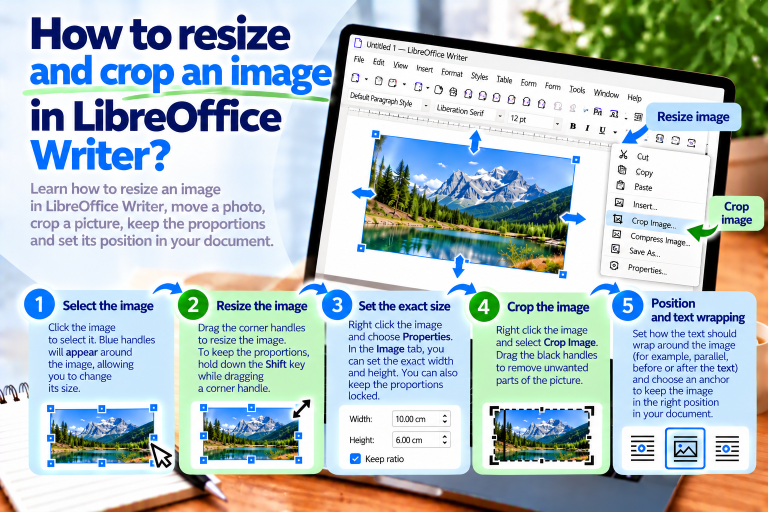
How to Resize a Shape
After drawing a shape, you can enlarge or reduce it.
Click the object to select it.
Handles will appear around the shape.
Then drag the selected handle to change its dimensions.
If you need an exact width and height, use the position and size settings.
This allows several rectangles to have identical dimensions.
It is particularly important when creating organized diagrams.
How to Move a Shape to Another Position
To move a shape, first select it.
Then drag the object with the mouse to the desired location.
However, remember that the shape’s position also depends on its anchoring.
If the object moves along with the text while editing the document, check its anchoring settings for the paragraph or page.
This makes it easier to keep the diagram in the correct position.
How to Copy a Shape
If you are preparing a diagram consisting of several similar elements, you do not need to draw every rectangle from scratch.
First, select the completed shape.
Then use:
Ctrl + C
After copying, press:
Ctrl + V
Writer will create a copy of the object.
You can move it and change the text inside it.
This ensures that subsequent elements maintain a similar appearance.
How to Rotate a Shape
Some shapes need to be rotated.
For example, you may want to rotate an arrow or rectangle.
Select the object and use the available rotation tools.
Then adjust its angle.
Depending on the selected tool, you can rotate the shape with the mouse or specify a value in the settings.
This makes it easier to create a diagram with a custom layout.
How to Insert a Callout with Text
Callouts are useful for commenting on illustrations and creating educational materials.
You can use them to highlight an important part of a screenshot.
First, open the shape tools and select the appropriate type of callout.
Then draw the callout.
Add text and adjust its appearance.
If necessary, change the position of the callout pointer.
This helps readers understand which element the comment refers to.
How to Create Flowcharts in LibreOffice Writer
A flowchart allows you to present the successive stages of a process.
For example, you can create a simple diagram:
Start → Data Entry → Verification → End
To create it, first draw the appropriate shapes.
Then enter the names of the stages.
Connect the shapes using lines or connectors.
Finally, align the elements and adjust the spacing.
This can make even complicated instructions easier to understand.
How to Connect Shapes with Lines
An ordinary line can indicate a relationship between two objects.
However, when creating diagrams, it is also worth using connectors.
Connectors can be attached to the connection points of shapes.
This makes it easier to maintain the appropriate connections when moving diagram elements.
First, create two shapes.
Then select the connector tool and connect the appropriate objects.
When finished, check that the line leads to the correct elements.
How to Align Multiple Shapes
Unevenly positioned rectangles can make a diagram look chaotic.
Therefore, it is worth using alignment features.
First, select several objects.
You can do this by holding down Shift and clicking each shape.
Then choose the appropriate alignment command.
This allows you to align the elements along a common edge or axis.
In more complex projects, it is also worth controlling the spacing between shapes.
How to Place One Shape in Front of Another
Sometimes objects overlap.
For example, you may want to place a small circle on top of a larger rectangle.
If the circle is not visible, it may be behind another element.
In this case, select the appropriate shape and use the object arrangement commands.
You can bring the shape to the front or place it behind other elements.
This makes it easier to create more complex illustrations.
How to Group Multiple Shapes
Grouping is useful when a diagram consists of many elements.
Suppose you have created three rectangles connected by arrows.
If you move only one object, the entire layout may become misaligned.
Therefore, it is worth combining the elements into a group.
First, select all the objects that should belong to the group.
Then choose Group from the context menu or arrangement tools.
After grouping, you can move everything as a single object.
This preserves the diagram layout.
How to Ungroup Shapes
Sometimes, after grouping objects, you want to modify an individual element.
In this case, select the group.
Then use the Ungroup command.
Writer will make the individual objects available for independent editing again.
This allows you to change the text, color, or position of a selected shape.
When finished, it is worth grouping the elements again if they are intended to form a single diagram.
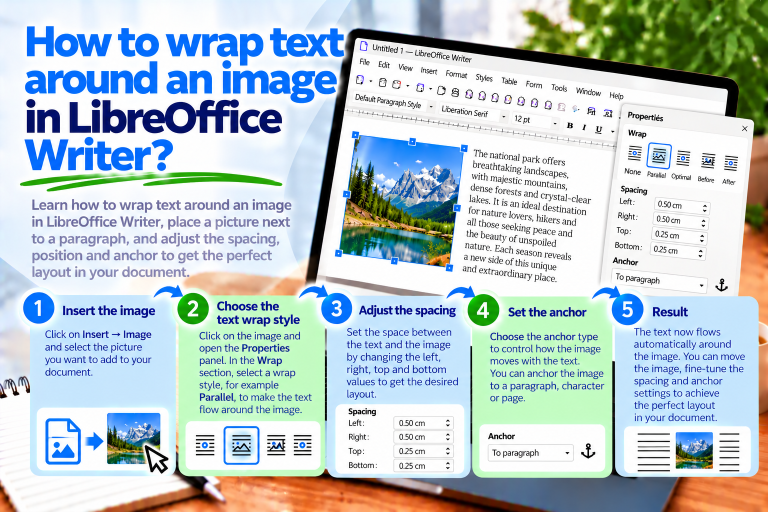
How to Wrap Text Around a Drawing
Shapes inserted into a document can affect the arrangement of text.
Therefore, it is worth checking their anchoring and text wrapping settings.
First, select the object.
Then open the available positioning and wrapping settings.
Choose the method that matches your intended layout.
For example, a small diagram can appear next to a paragraph.
A larger diagram, on the other hand, is usually better placed between sections of text.
This keeps the document readable.
What Is LibreOffice Draw?
LibreOffice Draw is a separate module of the LibreOffice suite designed for creating and editing graphics.
It allows you to create flowcharts, diagrams, technical drawings, and other projects using vector objects.
Compared with Writer’s drawing tools, it provides a more convenient environment for working on complex illustrations.
This means you can prepare a graphic design separately and then use it in a text document.
What Is the Difference Between Writer and Draw?
Writer is primarily designed for creating text documents.
Therefore, its drawing tools work best for simple diagrams, arrows, and informational elements.
Draw, on the other hand, is designed for more advanced work with graphic objects.
It allows you to arrange multiple shapes more conveniently, create complex diagrams, and use additional editing tools.
If you only need to highlight a button in a screenshot, Writer is usually sufficient.
However, for a complicated diagram, it is worth considering Draw.
How to Open LibreOffice Draw
To start working in Draw, open LibreOffice.
Then select:
File → New → Drawing
The program will open a new drawing document.
You can now add shapes, lines, arrows, and text boxes.
This allows you to create an illustration independently of your Writer document.
How to Draw a Diagram in LibreOffice Draw
First, launch Draw and create a new document.
Then select the shapes you need.
For example, you can create a diagram showing the order processing workflow.
Label the first rectangle:
Order Received
The second:
Availability Check
The third:
Preparing Shipment
Connect the elements with arrows.
Then align the shapes and apply consistent colors.
This will give you a clear diagram that you can use in instructions or a report.
How to Transfer a Drawing from Draw to Writer
After preparing a diagram, you can place it in a text document.
One method is to copy the objects.
First, select the appropriate elements in Draw.
Then use:
Ctrl + C
Switch to the Writer document and press:
Ctrl + V
Depending on how the objects are pasted, they may remain editable.
If you need a specific format, use Paste Special.
This allows you to choose how the drawing is transferred to the document.
How to Save a Drawing from Draw as an Image
Sometimes it is more convenient to use a completed diagram as an image file.
In Draw, you can use the export feature.
First, prepare and select the appropriate objects if you want to export only a selected part of the project.
Then select File → Export.
Choose the appropriate format, such as PNG or SVG.
After saving, open Writer and select Insert → Image.
This allows you to place the completed illustration in the document.
Is It Better to Use PNG or SVG?
The choice depends on the type of graphic.
PNG works well for screenshots and raster images.
SVG, on the other hand, is a vector format.
This means simple diagrams and icons can maintain sharp edges when scaled.
If you are preparing a diagram consisting mainly of shapes and lines, SVG will often be a good choice.
However, it is worth checking that the image displays correctly after inserting it into the document.
How to Edit a Drawing After Inserting It into Writer
The available editing options depend on how the graphic was transferred.
If you paste drawing objects, you may retain the ability to modify their individual elements.
However, after inserting a completed PNG file, Writer will treat it as a raster image.
This means you cannot modify an individual rectangle in the same way as in the original Draw project.
Therefore, it is worth keeping the source file as well.
This makes it easy to correct the diagram later and export the image again.
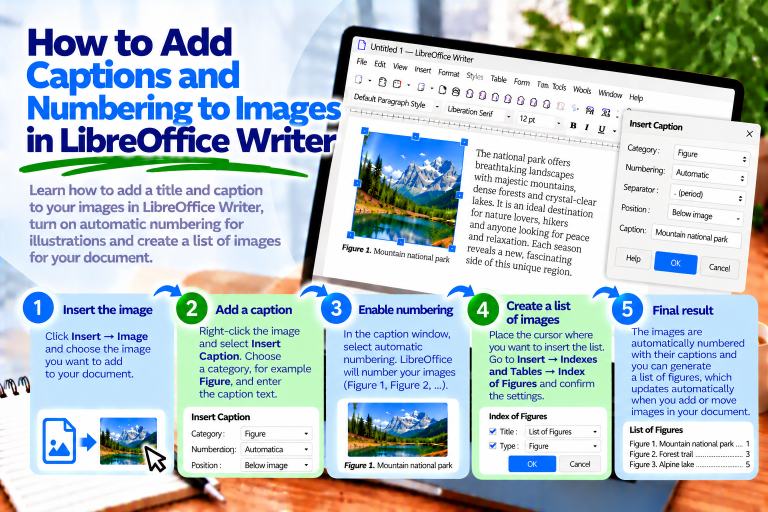
How to Add a Caption Below a Diagram
If a drawing is an important part of the document, it is worth describing it properly.
For example, you can use the caption:
Figure 1: Order Processing Diagram
If the diagram was inserted as an image, you can select it and use Insert Caption.
Then choose the appropriate category and enter the text.
This allows Writer to automatically number subsequent illustrations.
In extensive documents, these captions will also be useful when creating a table of figures.
Why Do Shapes Move While Typing?
The problem is usually caused by object anchoring.
If a shape is associated with a paragraph, changes to the text may affect its position.
Therefore, check the anchoring method and arrangement settings.
For larger diagrams, it is also worth grouping related elements.
This makes it easier to maintain their relative positions.
Why Can’t I Select a Shape?
Sometimes an object is positioned behind another element or has been placed in the background.
In this situation, an ordinary click may select a different object.
First, enable the selection tool on the Drawing toolbar.
Then try selecting the appropriate shape.
If objects overlap, the arrangement and object selection commands may also help.
This makes it easier to access the correct element.
Why Can’t I Group Objects?
First, make sure the appropriate drawing elements are selected.
Not all types of objects can be grouped in the same way.
Additionally, some elements may have different anchoring settings or be located within a document structure that makes selecting them together difficult.
Therefore, it is worth checking the object types and their settings.
If you are creating a very complex diagram, preparing it in LibreOffice Draw may be more convenient.
How to Create Clear Diagrams
First, determine what the diagram should explain.
Then choose as few shapes as possible.
It is worth using consistent colors and similar shape sizes.
Also, make sure there is adequate spacing.
Arrows should clearly indicate the direction of information flow.
The text inside shapes should be short and understandable.
This will make the diagram easy to read even without a lengthy description.
Most Common Mistakes When Creating Drawings
The first mistake is using too many colors. As a result, the diagram may look chaotic.
Another problem is unevenly positioned shapes.
Therefore, it is worth using alignment features.
You should also avoid using too many elements.
If a diagram becomes very complicated, consider dividing it into several smaller illustrations.
It is also worth remembering to group objects and keep the original Draw file.
This will make later corrections much easier.
What Is the Fastest Way to Insert Shapes in LibreOffice Writer?
First, open a Writer document.
Then select View → Toolbars → Drawing.
Click the appropriate shape, such as a rectangle or ellipse.
Drag the mouse to draw the shape.
After selecting the object, change its color, border, or size.
If you need a label inside the shape, start editing its text and enter the appropriate content.
This allows you to create a simple graphic element in just a few moments.
Inserting shapes in LibreOffice Writer allows you to enhance a document with arrows, lines, rectangles, circles, and simple diagrams.
The most important tool is the Drawing toolbar, which provides basic features for creating and formatting shapes.
You can change colors, add text, align objects, and combine them into groups.
However, if you need a more complex diagram, it is worth using LibreOffice Draw.
This allows you to prepare an illustration in a convenient graphics environment and then transfer it to a Writer document.
The most important thing is to maintain readability and a consistent appearance. A well-designed diagram should make information easier to understand rather than distract from the content.