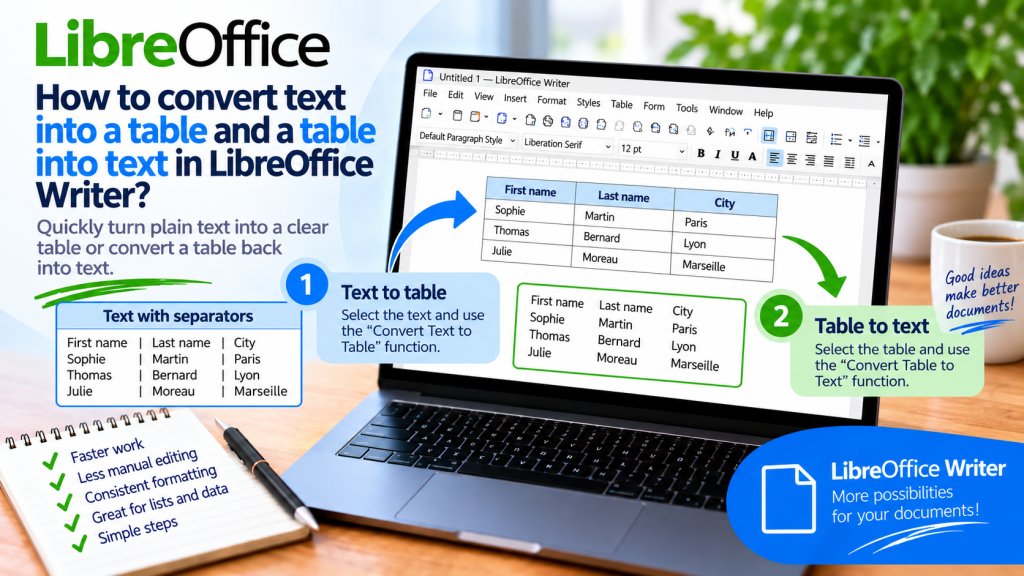
You received a list of products, names, or results, and everything looks like an ordinary block of text. The data is correct, but manually retyping it into a table would be a waste of time. In LibreOffice Writer, you can use existing separators to turn text into organized rows and columns in just a few moments.
The mechanism also works the other way around. You can convert an existing table into plain text while preserving its contents and choosing the character that will separate individual values.
The separator is crucial here. Once you understand how it works, converting even a larger data set becomes very simple.
Can Writer Automatically Convert Text to a Table?
Yes. You do not have to create an empty table first and then copy the data into each cell.
Writer has the following command:
Table → Convert → Text to Table
The program analyzes the selected text and uses the specified separator to determine where individual columns should be created.
Each paragraph can, in turn, be converted into a separate table row.
This means that properly prepared text can be converted into a table in practically a single operation.
What Is a Separator?
A separator is a character that tells the program where one value ends and the next one begins.
Suppose you have the following text:
Product;Price;Quantity
The individual pieces of information are separated by semicolons.
In this case, the separator is:
;
Writer can treat each semicolon as a boundary between columns.
As a result, three cells will be created:
Product | Price | Quantity
The separator is therefore the basis of a correct conversion.
How to Prepare Text Before Converting It to a Table?
Before starting the conversion function, take a look at the structure of the data.
Suppose you have:
Monitor;899;4
Keyboard;149;12
Mouse;79;18
Each product is in a separate paragraph, while the individual pieces of information are separated by semicolons.
This type of text is ideal for automatic conversion.
Each paragraph will become one row.
The semicolons will define the column boundaries.
You will therefore get a table with three rows and three columns.
How to Convert Text to a Table Step by Step?
First, select the entire section of text you want to convert.
Then choose:
Table → Convert → Text to Table
A settings window will appear.
Now select the separator used between the values.
You can choose, among other things:
tab
semicolon
paragraph
other character
After selecting the appropriate option, confirm the operation.
Writer will create a table based on the structure of the selected text.
How to Convert Tab-Separated Text to a Table?
Tabs work very well for preparing data before conversion.
Imagine text in which a tab has been inserted between the product name, price, and quantity.
The structure then looks like this:
Product Price Quantity
Monitor 899 4
Keyboard 149 12
Mouse 79 18
Select the entire section.
Then go to:
Table → Convert → Text to Table
In the separator section, select:
Tabs
Confirm.
Each tab will become a boundary between cells, while consecutive paragraphs will create subsequent rows.
How to Insert a Tab into Text?
By default, the Tab key allows you to insert a tab while working with ordinary text.
You can therefore prepare data so that each value is separated by this character.
Do not try to align information by repeatedly pressing the space bar.
Spaces are much less convenient as markers of data structure.
If you are preparing text specifically for later conversion, tabs or semicolons will usually be a better choice.
How to Convert Semicolon-Separated Text to a Table?
This is one of the most convenient methods, especially when the data has been copied from another program.
Example text:
First Name;Last Name;City
Anna;Kowalska;Warsaw
Piotr;Nowak;Kraków
Maria;Wiśniewska;Gdańsk
Select the data.
Choose:
Table → Convert → Text to Table
Then select:
Semicolon
After confirmation, Writer will create three columns.
The first will contain first names, the second last names, and the third cities.
How to Use a Custom Separator?
You are not limited to tabs and semicolons.
Writer allows you to specify your own character.
Suppose the data looks like this:
Monitor|899|4
Keyboard|149|12
Mouse|79|18
In the conversion window, select:
Other
Then enter the character used between the values.
In our example, this will be the vertical bar.
After confirmation, Writer will use this character to determine the boundaries of individual columns.
This function is particularly useful when working with text from different systems.
What Does the Paragraph Option Do?
Writer also allows you to use paragraphs as separators.
If you select this option, paragraph boundaries will be used when creating the table structure.
This solution makes sense when the paragraph divisions correspond to the data layout you want to create.
Before using this option, it is worth checking the text carefully because accidental empty paragraphs may affect the result.
Each Paragraph Can Become a Separate Row
This is one of the most important rules of conversion.
In a typical data layout, one paragraph corresponds to one record.
If you have:
Monitor;899;4
and press Enter, then enter:
Keyboard;149;12
Writer can create two table rows.
The semicolons will divide each row into three cells.
Therefore, it is worth organizing paragraph breaks before conversion.
How to Display Nonprinting Characters Before Conversion?
Sometimes the text looks correct, but after conversion, the table has the wrong number of columns.
The cause may be additional tabs, paragraphs, or other characters.
In Writer, you can display nonprinting characters.
This makes it easier to see where tabs and paragraph endings are located.
This is particularly useful before converting a larger amount of data.
If the table looks different from what you expected after conversion, it is worth returning to the text and checking its structure first.
How to Create a Header During Conversion?
If the first row of text contains column names, you can use it as a header.
For example:
Product;Price;Quantity
Monitor;899;4
Keyboard;149;12
The conversion window includes the following option:
Heading
When enabled, Writer will treat the first row of the new table as a header.
This means you do not have to format it from scratch after the conversion is complete.
How to Repeat the Header on Subsequent Pages?
For a long table, it is worth using the header repetition function.
In the conversion window, you will find the option:
Repeat heading
You can also specify the number of initial rows that serve as the header.
If the table spans several pages, Writer can repeat these rows on subsequent pages.
This means the reader does not have to return to the beginning of the table to check the meaning of individual columns.
How to Create Columns of Equal Width?
During conversion, you can decide whether all columns should have the same width.
In the window, you will find the option:
Equal width for all columns
When applied, Writer will create columns of equal width, regardless of the position of separators in the original text.
However, it is not always worth enabling this option.
If the first column contains long product names and the second only short numbers, identical widths may not be the best solution.
How to Automatically Add Borders?
The following option is also available during conversion:
Border
Enabling it adds borders to the table and its cells.
This means the newly created table will immediately have a visible structure.
Of course, you can later change the appearance of the lines, their thickness, and other formatting elements.
How to Apply a Ready-Made Table Appearance?
In the conversion window, Writer provides the following function:
AutoFormat
It allows you to select a predefined table formatting style.
This is a convenient solution when you want to quickly achieve a readable appearance.
However, if the table needs to match a specific document style, you can create it without additional effects and format it manually later.
What to Do If the Table Should Not Split Across Pages?
During conversion, there is also an option that prevents the table from being split across pages.
It can be useful for small tables that should remain entirely in one place in the document.
However, with very large tables, this will not always be possible.
Therefore, it is worth choosing this option according to the length of the data and the available space on the page.
What to Do If Too Many Columns Were Created After Conversion?
This usually means that the text contains additional separators.
Suppose a semicolon was selected as the separator.
If one row looks like this:
Monitor;gaming;899;4
while the others contain only three values, Writer will create an additional division at that point as well.
Therefore, before conversion, check whether each record uses the separator in the same way.
Data consistency is extremely important here.
What to Do If All Data Ended Up in One Column?
The wrong separator was probably selected.
If the data is separated by tabs but you select semicolons in the conversion window, Writer will not find the correct boundaries.
As a result, you will not get the expected division into columns.
Undo the operation using:
Ctrl + Z
Then select the text again and check the actual character separating the values.
How to Convert a Table to Plain Text?
Writer also allows you to perform the reverse operation.
Click inside the table.
Then choose:
Table → Convert → Table to Text
A window will appear where you can specify how the contents should be separated.
Select the appropriate separator and confirm.
The table will be removed as a structure, while the information it contains will remain in the document as text.
What Happens to Rows When Converting a Table to Text?
Each table row is converted into a separate paragraph.
The boundaries between columns are replaced with the selected separator.
If you choose a semicolon, the table:
Monitor | 899 | 4
will be converted into text corresponding to the following structure:
Monitor;899;4
The next table row will create the next paragraph.
This makes it possible to quickly recover structured text from an existing table.
Which Separator Should You Choose When Converting a Table to Text?
It depends on what you plan to do with the data later.
If the text will continue to be edited conveniently in Writer, tabs may be useful.
If the data will be transferred to a program that uses a specific character to separate fields, you can choose a semicolon or a custom separator.
The most important thing is that the character does not occur accidentally within the data itself.
Tab or Semicolon?
Both methods are good, but they work better in slightly different situations.
Tabs are convenient when working with text intended primarily for people. They allow you to maintain visual spacing and can easily be used later for another conversion.
A semicolon, on the other hand, is a very clear technical separator.
If the text contains a lot of numerical data or has been prepared for further processing, a semicolon may be more convenient.
Is a Space a Good Separator?
Usually not.
Imagine the following data:
Jan Kowalski Warsaw
If you treat every space as a column boundary, Writer will not know that Jan Kowalski should be treated as one piece of information.
A similar problem will occur with names such as:
27-inch office monitor
Therefore, it is better to use characters that do not naturally occur within the values.
A tab or semicolon is usually a safer solution.
How to Convert a List of Names to a Table?
Suppose you have:
Anna;Kowalska;Warsaw
Piotr;Nowak;Kraków
Maria;Wiśniewska;Gdańsk
Select all the text.
Go to:
Table → Convert → Text to Table
For the separator, select:
Semicolon
After confirmation, you will get three columns containing the first name, last name, and city.
You can then add a header row or prepare it in the text before conversion.
How to Convert a Price List to a Table?
Example text might look like this:
Product;Price;Availability
Monitor;899;Yes
Keyboard;149;Yes
Mouse;79;No
Select the data and start the conversion.
Choose the semicolon as the separator.
Enable the header option.
You can also select the option to add borders.
After confirmation, you will have a ready-made price list structure that only needs to be formatted to match the appearance of the document.
Will Text Formatting Be Preserved?
Conversion primarily changes the structure of the selected content.
After performing the operation, it is always worth checking the appearance of the text, headers, column widths, and borders.
If you want a specific table design, first perform the data conversion correctly and only then move on to detailed formatting.
This is much more convenient than trying to correct the structure and appearance at the same time.
Converting Text and Data Copied from the Internet
Data copied from a website does not always have as simple a structure as its appearance suggests.
There may be additional tabs, spaces, or paragraph breaks between values.
Therefore, it is a good idea to check the text before conversion.
If the layout is irregular, organize the separators first.
Only then use:
Table → Convert → Text to Table
This will help you avoid creating accidental empty cells.
Converting Text and Data from a Calc Spreadsheet
If you are working with a larger amount of data, consider whether you actually need to perform the conversion in Writer.
For simple lists, Writer’s mechanism works very well.
However, if the data needs to be sorted, filtered, calculated, or cleaned first, it is more convenient to prepare it in LibreOffice Calc.
You can then transfer the finished data set to the document.
Writer is primarily a text editor, while Calc is designed for more extensive work with data.
Can You Convert Text Back to a Table?
Yes.
If you previously converted a table to text and kept clear separators, you can later perform the reverse operation.
Suppose the table was converted to text using semicolons.
If the structure has remained unchanged, select the data and choose:
Table → Convert → Text to Table
Set the semicolon as the separator again.
Writer will recreate the row and column structure based on these characters.
This is another reason why it is worth choosing unambiguous separators.
How to Undo an Unsuccessful Conversion?
If the result does not look right, do not manually correct dozens of cells.
Press:
Ctrl + Z
Writer will undo the last operation.
Then correct the separators in the text or choose different conversion settings.
With large data sets, it is also a good idea to save the document before starting the operation.
Most Common Mistakes When Converting Text to a Table
The most common problem is choosing the wrong separator. If the text contains tabs, select tabs. If the values are separated by semicolons, select the semicolon.
The second mistake is an irregular structure. One additional separator can create an extra cell.
Another pitfall is accidental empty paragraphs. They can affect the number of rows created.
It is also not worth manually formatting text with multiple spaces if you plan to convert it to a table later.
First, make sure the data has a logical structure. You can improve the appearance of the table after conversion.
What Is the Fastest Way to Convert Text to a Table in LibreOffice Writer?
Select the prepared text.
Then choose:
Table → Convert → Text to Table
Select a separator, such as a tab or semicolon.
If the first row contains column names, enable the header option.
Confirm.
Writer will create the table automatically.
The reverse operation is similar.
Click the table and choose:
Table → Convert → Table to Text
Then decide which character should separate the values.
Converting text to a table in LibreOffice Writer can save a lot of time, especially when the data is already organized using tabs, semicolons, or other separators.
The most important menu path is:
Table → Convert → Text to Table
Writer can use tabs, semicolons, paragraphs, or a character you specify. Each paragraph can create a separate row, while separators define the column boundaries.
The mechanism also works in the opposite direction. The Table → Convert → Table to Text command removes the table structure and replaces column boundaries with the selected separator.
Most problems are caused not by the conversion function itself, but by poorly prepared text. Therefore, before you begin, check the tabs, paragraphs, and separators. If the data structure is consistent, Writer can transform even a long list into a clear table without manually copying the contents into individual cells.