The table has dozens of entries, and each one should receive the next number. Entering 1, 2, 3, and the following values manually is not difficult with five records. With fifty, however, it becomes unnecessarily time-consuming, and after adding new entries, it is easy to lose the correct sequence.
LibreOffice Writer does not work exactly like Calc in this respect. A table in a text document is not a full spreadsheet, so not all automatic fill mechanisms known from Calc are available here in the same form.
Even so, you can conveniently number entries and, in more technical tables, also use formulas.
Numbering Table Rows vs. Numbering Document Lines
First, it is important to explain a very important difference.
In the Writer menu, you will find:
Tools → Line Numbering
However, this function is not used to enter the numbers 1, 2, 3 in the first column of a table.
Document line numbering means counting lines of text. The numbers appear next to the text and can be used, for example, in legal documents, technical documents, or materials that require references to specific lines.
If, on the other hand, you want to create a column in a table such as:
No. | Product | Price
you need a different solution.
How to Prepare a Column with Sequential Numbers?
Suppose the table contains:
No. | Product | Quantity | Price
Use the first column for sequential numbers.
The following cells should contain:
1
2
3
4
and the subsequent values.
With a separate column, the number remains part of the table. You can format it, align it, and print it together with the other information.
The Simplest Way to Number Rows
If the table is short and its structure will not change frequently, the simplest method is to enter consecutive values directly into the first column.
Click the first cell below the No. header.
Enter:
1
Move to the next cell and enter:
2
Continue in the following rows.
For a small table, this method is sufficient. The problem begins when the table contains dozens or hundreds of entries.
Does Writer Automatically Fill a 1, 2, 3 Series Like Calc?
This is where an important difference between Writer and Calc appears.
In a Calc spreadsheet, you can enter the beginning of a series, select the cells, and drag the fill handle. The spreadsheet will automatically create the subsequent values.
A Writer table does not provide an identical spreadsheet fill mechanism.
Therefore, if you regularly work with very large tables and need automatic number series, Calc will be a more convenient tool.
However, in Writer, we can use other mechanisms.
How to Use Formulas in a Writer Table?
Writer tables support formulas.
Click a table cell.
Then press:
F2
You can also go to:
Table → Edit Formula
A bar will appear where you can enter a calculation.
Writer allows you to refer to other table cells using their addresses.
For example:
A1
means the cell in the first column and first row.
In turn:
A2
means the second cell in the first column.
This allows you to create relationships between consecutive table cells.
How to Create the Next Number Using a Formula?
Suppose column A contains sequential numbers.
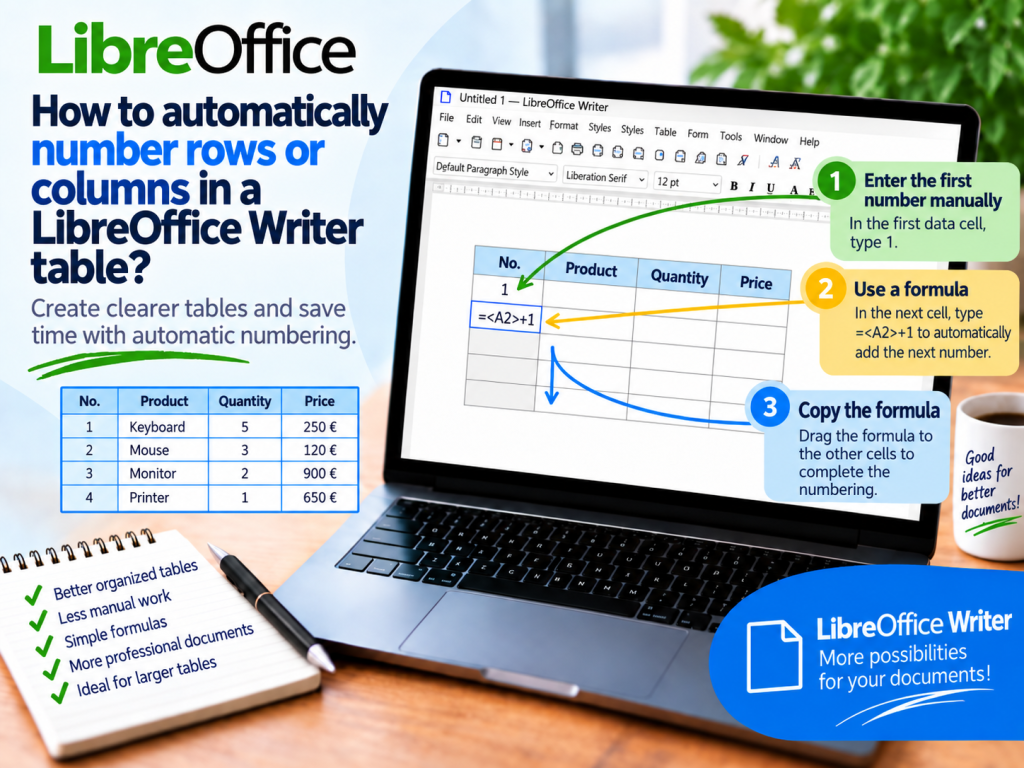
In the first data cell, enter:
1
In the next cell, you can create a formula based on the value above it.
If the previous number is in cell A2, the next cell can use the calculation:
=+1
Writer will take the value from A2 and increase it by one.
If A2 contains the number 1, the result will be:
2
In the next row, a similar formula can refer to the cell directly above it.
This way, you create a logical sequence of values.
How Does Writer Store Cell Addresses?
The mechanism is similar to a spreadsheet.
The letter indicates the column, while the number indicates the row.
Therefore:
A1
is the first column and first row.
B1
is the second column and first row.
C3
is the third column and third row.
In formulas, Writer stores references to table cells in angle brackets.
An example formula:
=+1
takes the contents of A1 and adds the value 1 to it.
The Header Changes the Cell Row Number
This is a detail that is easy to forget.
If the first row of the table contains headers:
No. | Product | Price
then the first data value is not in A1.
Cell A1 is the No. header.
The first number is then in A2.
The second number will be in A3.
Therefore, when creating formulas, always pay attention to the actual cell address.
Is a Formula the Best Way to Number Rows?
Not in every situation.
Formulas in Writer are useful when the table also performs other calculations and you want to maintain relationships between cells.
However, if you only need simple sequential numbers, adding many formulas to the table may be less convenient than ordinary numbering.
The method you choose should therefore depend on the size and purpose of the table.
How to Number Rows Using a Numbered List?
There is another solution that works particularly well when the first column is intended solely for sequential numbers.
Table cells can contain paragraphs, and Writer can number paragraphs.
This means you can use the numbered list mechanism in the cells of the first column.
Select the appropriate cells or the paragraphs they contain, and then apply numbering.
Writer can then display consecutive numbers next to individual entries.
This method is convenient when your main concern is sequential numbering rather than performing calculations with these values.
When Is a Numbered List Better Than a Formula?
A numbered list is a good solution for tables such as:
participant list
task list
product list
item list
checklist
In these cases, the number mainly serves an organizational purpose.
A formula, on the other hand, is more appropriate when the number is intended to be a numerical value used in other calculations.
This is an important difference.
A number displayed by the list mechanism is not the same as an ordinary number entered into a cell.
How to Start Numbering from a Different Value?
Not every table has to start with 1.
Suppose the previous table ended at item 25, and the new one should continue numbering from:
26
With the manual method, simply start with the value 26.
If you use formulas, give the first cell the value:
26
The next cell can take the previous value and add 1.
You will get:
26
27
28
29
and the subsequent values.
How to Number Columns?
Sometimes you need horizontal rather than vertical numbering.
An example might be a table such as:
Stage | 1 | 2 | 3 | 4 | 5
or:
Week | 1 | 2 | 3 | 4
The simplest method is to enter the values in the first row.
If you need a calculation-based relationship, you can also use formulas that refer to the cell on the left.
The mechanism remains the same.
Instead of moving down column A, you move to the right through consecutive columns.
How Does Column Numbering Using a Formula Work?
Suppose the first value is in:
B1
and is:
1
In cell C1, you can refer to B1 and increase the value by one.
The next cell can use the value directly to its left.
As a result, you will get the series:
1 | 2 | 3 | 4 | 5
This mechanism can be useful in schedules and stage tables.
What Happens After Adding a New Row?
It depends on the method used.
If the numbers were entered manually, adding a new row will not automatically renumber all subsequent values.
You will need to correct the numbering.
With numbering based on the list structure, Writer may handle continuation of the sequence better because the numbers are generated by the paragraph numbering mechanism.
With formulas, however, you need to monitor the references between cells.
Therefore, before choosing a method, consider how often the table will be modified later.
What Happens After Deleting a Row?
With manually entered numbers, a gap may appear.
For example:
1
2
4
5
If number 3 disappeared together with the deleted row, the remaining numbers will not change automatically.
In this case, you will need to correct them manually.
This is one reason why it is worth considering a numbered list mechanism for tables that are frequently modified.
Numbering and Table Sorting
This is particularly important.
Suppose the first column contains the numbers:
1, 2, 3, 4, 5
and the second column contains last names.
If you sort entire rows by last name, the numbers will move together with the records.
As a result, the first item after sorting does not necessarily have to be number 1.
If the number is an identifier for a specific record, this behavior may be correct.
However, if the first column represents only the current order of items, you will need to reorganize the numbering after sorting.
Therefore, it is worth deciding in advance whether the number represents an identifier or simply a position in the table.
A Sequential Number and an Identifier Are Not Always the Same
This is a small difference that has a major impact.
A sequential number means:
this is the third item on the list
An identifier, on the other hand, means:
this record has number 3
After sorting, a sequential number should usually change together with the position.
An identifier, however, should remain assigned to a specific record.
If the table will be sorted, determine the purpose of the first column before you start numbering.
How to Center Numbers in the First Column?
After creating the numbering, it is worth improving the appearance of the table.
Select the first column.
Then set the text alignment to center.
If the column contains only short numbers, you can also reduce its width.
This will leave more space for names, descriptions, and other actual data.
The No. column usually does not need to be as wide as the Product Description column.
Can You Automatically Number Hundreds of Rows in Writer?
Technically, you can create a large table, but it is worth considering whether Writer is still the right tool.
If the table has hundreds of records, changes frequently, is sorted, and contains calculations, LibreOffice Calc will be much more convenient.
Calc provides mechanisms for automatically filling series, spreadsheet formulas, sorting, filtering, and much more convenient tools for working with large data sets.
You can later transfer the finished table or part of it to a Writer document.
Writer works best when the table is primarily part of a text document.
Which Numbering Method Should You Choose?
For a small, static table, you can simply enter consecutive numbers.
If the table will be expanded frequently, consider numbering based on the list mechanism.
Formulas are useful when subsequent values should be based on the contents of other cells.
For very large tables, it is better to prepare the data in Calc.
There is no single best method for every document. The most important thing is to choose a solution that matches how you will work with the table later.
Most Common Mistakes When Numbering a Table
The first mistake is confusing the Tools → Line Numbering command with numbering table records. This function is used to number lines in the document.
The second problem appears after sorting. Manually entered numbers may move together with entire records.
Another difficulty involves deleting and adding rows. Static values do not necessarily adjust automatically to the new table structure.
It is also worth paying attention to cell addresses in formulas. If the table has a header row, the first record may be in the second row rather than the first.
How to Automatically Number Rows in a LibreOffice Writer Table?
If you want the numbering to respond to the list structure, a practical solution is to use numbered paragraphs in the first column.
If you need actual numerical values and relationships between cells, use table formulas.
You can edit a formula by placing the cursor in a cell and pressing:
F2
or by selecting:
Table → Edit Formula
References to other cells are written in angle brackets, for example:
=+1
This allows the next cell to receive a value one greater than the previous one.
Summary
Automatically numbering rows or columns in a LibreOffice Writer table requires choosing a method appropriate for the type of document. Writer is not a spreadsheet, so you should not expect the same series-dragging mechanism as in Calc.
For simple tables, ordinary numbers are sufficient. If the first column serves as an ordered list, you can use paragraph numbering. In more technical tables, formulas and references to other cells are also available.
It is worth remembering that the Tools → Line Numbering command applies to lines of text in the document, not consecutive table records.
If the table contains hundreds of entries, changes frequently, and requires advanced automatic numbering, it is better to create it in Calc and then use it in a Writer document. This gives you the convenience of working with data without giving up the ability to prepare the entire document in Writer.