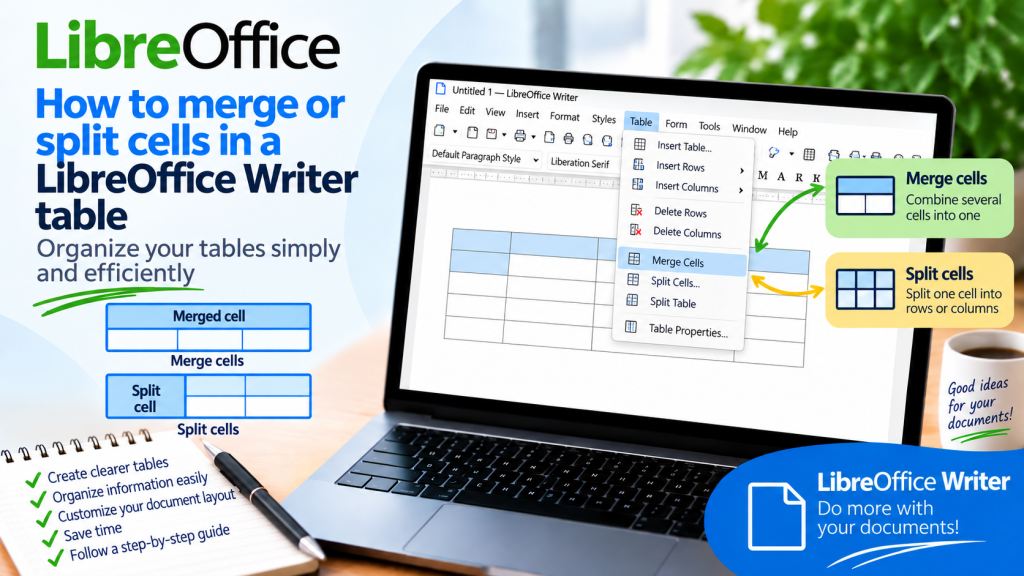
Two cells need to form one large header, while a single field suddenly needs to be divided into several smaller parts. There is no need to delete the table or build it again. Writer allows you to change the structure of an existing table exactly where needed.
The Merge Cells and Split Cells functions are used for these operations. The first combines several adjacent cells into one larger cell. The second performs the opposite operation and allows you to split a cell vertically or horizontally.
However, it is worth knowing what will happen to the text, formatting, and width of the cells. Let’s look at it step by step.
What Does Merging Cells Mean?
Merging involves combining several adjacent cells into one.
Imagine a table with four columns:
Product | Price | Quantity | Value
Above these columns, you want to place one common title:
Sales Summary
Instead of entering the title into one narrow cell, you can select the four cells in the first row and merge them.
This will create one wide cell occupying the space of all the previously selected cells.
How to Merge Cells in LibreOffice Writer?
First, select the cells you want to merge.
They must be adjacent to each other.
Then select:
Table → Merge Cells
Writer will turn the selected area into a single cell.
The official LibreOffice documentation confirms that this command combines the contents of the selected cells into one cell.
How to Select Multiple Cells Before Merging?
The easiest way is to use the mouse.
Click the first cell and drag the selection across the other cells you want to merge.
Only after selecting the appropriate area, use:
Table → Merge Cells
If the command is unavailable, first check whether more than one cell has actually been selected.
Can You Merge Cells in One Row?
Yes, and this is the most common use of this feature.
Suppose you have four cells:
January | February | March | April
Above them, you want to create a common header:
First Months of the Year
Add the appropriate row, select the four cells, and choose:
Table → Merge Cells
Then enter the common title.
A header created this way immediately shows the reader that the columns below belong to one group.
Can You Merge Cells Vertically?
Yes. Merging is not limited to cells located next to each other in the same row.
You can select adjacent cells arranged vertically and merge them as well.
This is useful, for example, when one category covers several consecutive items.
Instead of repeating the same name in every row, you can create a larger cell spanning the appropriate section of the table.
Can You Merge a Larger Area of a Table?
You can also select several adjacent rows and columns.
If the selection forms an appropriate continuous area, Writer can transform it into one large cell.
This solution is useful, among other things, when creating forms.
A large merged cell can serve as a space for:
Notes
Comment
Description
Signature
This way, you do not have to change the layout of the entire table.
What Happens to Text When Cells Are Merged?
This is very important, especially if you are merging cells that are not empty.
Writer combines the contents of the selected cells in the new cell.
Therefore, you should not assume that the text in the other cells will simply disappear.
After merging, check the result and organize the text if necessary.
What’s more, according to the current LibreOffice documentation, the resulting cell retains the formatting of the first cell in the selected area.
Therefore, the order and method of selection may affect the appearance of the result.
How to Format a Merged Cell?
After merging cells, you can format the resulting cell just like any other table cell.
You can change:
background color
borders
text alignment
font size
font
spacing
For headers, centered and bold text works particularly well.
If the merged cell serves as the main title of the table, it is also worth using a subtle background color to distinguish it from the data.
How to Split a Cell in LibreOffice Writer?
Now we will perform the opposite operation.
Click the cell you want to split.
Then select:
Table → Split Cells
An additional window will appear.
There, you can specify the number of new parts and the direction of the split.
Writer allows you to split a cell:
horizontally
or
vertically
After confirmation, one cell will be replaced by several smaller cells.
How to Split a Cell Vertically?
A vertical split creates cells next to each other.
Suppose you have one wide field:
Contact Details
You want to divide it into two parts:
Phone | Email
Click the cell.
Select:
Table → Split Cells
Set the number of new cells to:
2
Then select the vertical split.
After confirmation, instead of one wide field, you will have two cells next to each other.
How to Split a Cell Horizontally?
A horizontal split creates cells one above the other.
Imagine a large cell intended for address details.
You want to create two separate fields:
Street
City
Click the appropriate cell and go to:
Table → Split Cells
Enter:
2
Then select the horizontal split.
Writer will divide the existing space into two sections arranged one above the other.
How to Split a Cell into More Than Two Parts?
You are not limited to two cells.
In the Split Cells window, you can specify a larger number.
Suppose you are creating a schedule and need one cell for each of the four weeks of the month.
Select:
Table → Split Cells
Then set the number to:
4
Choose the appropriate split direction and confirm.
Writer will create four smaller cells.
What Is the Difference Between Horizontal and Vertical Splitting?
The names may initially cause some confusion, so it is worth remembering a simple rule.
With a vertical split, you get additional cells next to each other.
With a horizontal split, the new cells are arranged one above the other.
If you are unsure, perform the operation on a test cell. You can immediately undo an incorrect result.
How to Undo an Incorrect Merge or Split?
Use:
Ctrl + Z
This is the fastest way to undo the last operation.
So if you accidentally merge the wrong cells or choose the wrong split direction, do not immediately try to repair the entire table manually.
Undo the change and perform the operation again.
How to Split Previously Merged Cells?
Suppose you previously merged four header cells but now want to change its structure again.
Click the large merged cell.
Then select:
Table → Split Cells
Specify the number of parts and the direction.
After confirmation, Writer will create new cells within the selected area.
However, keep in mind that this is not a mechanism for restoring the entire previous table structure along with its previous content and formatting.
If you want to precisely undo a merge you have just performed, Ctrl + Z is the safer solution.
Merging Cells and Column Width
Merging does not mean removing the structure of the rest of the table.
Suppose the table has four columns, but the first row has been merged into a single header.
The following rows can still contain four separate cells.
This allows you to create multi-level headers without rebuilding the entire table.
This is one of the biggest advantages of merging.
How to Create a Header Spanning the Entire Table?
Suppose the table has five columns.
Add an additional row at the beginning.
Select all five cells in that row.
Choose:
Table → Merge Cells
Then enter:
Sales Report
Center the text and make it bold.
You can also change the background color.
The result will be one wide header, while the remaining rows will still retain five separate columns.
How to Create a Two-Level Header?
Merging cells works very well with more complex tables.
Suppose four columns contain:
January | February | March | April
In the row above, select those four cells.
Then choose:
Table → Merge Cells
Enter:
Monthly Sales
You now have two levels of information.
The first level contains the general category, while the detailed months appear below.
This solution is much more readable than repeatedly displaying the same information.
How to Use Cell Splitting in a Form?
Imagine a form containing a wide cell:
Customer Details
You want to split only this section into:
First Name | Last Name | Phone
You do not need to add three columns to the entire table.
Click the appropriate cell.
Select:
Table → Split Cells
Set three parts and choose the vertical split.
The rest of the table structure can remain unchanged.
This is why the cell splitting function is particularly useful when creating forms.
How to Use Merging in a Price List?
Suppose the products have been divided into several categories.
The first three items belong to the category:
Monitors
The next four belong to:
Keyboards
Instead of entering the category name next to each product, you can merge the appropriate cells vertically.
This will create one larger cell spanning several items.
The reader will immediately see which products belong to a particular group.
When Should You Avoid Merging Cells?
Merging is useful, but it should not replace a properly structured table.
If every other cell has a different size, the table can quickly become difficult to edit.
Problems may also arise if you later want to add rows, change column widths, or process the data extensively.
Therefore, merging is best used where it genuinely improves the information hierarchy.
Good examples include headers, categories, and larger form fields.
Merging Cells and Sorting Data
If the table is primarily used for storing and sorting data, keep its structure as regular as possible.
Each row should represent one record, while individual columns should represent specific types of information.
A large number of merged cells can make working with such a table more difficult later.
In tables intended primarily for presenting data, however, merging can significantly improve the appearance of headers.
Writer or Calc for More Complex Tables?
Writer handles tables that are part of a text document very well.
You can create headers, merge cells, split fields, change borders, and prepare forms.
However, if the table is mainly used for calculations and analyzing large amounts of data, LibreOffice Calc will be more convenient.
You can also merge cells in a spreadsheet, but above all, you get tools designed for working with data, formulas, and calculations.
Writer is a better choice when the table is an integral part of a report, contract, instruction manual, form, or other text document.
Most Common Mistakes When Merging Cells
The first mistake is merging cells without checking their contents.
If the selected cells contain text, check the result after merging and organize the contents.
The second problem is using merging too often. A table with many irregular areas may look visually impressive but can be much more difficult to edit later.
Another mistake concerns the split direction. If you want cells next to each other, you need a vertical split. If they should be one above the other, choose a horizontal split.
It is also worth remembering that simply splitting a large cell will not always restore the exact previous layout. If you have just performed an incorrect merge, it is best to immediately use Ctrl + Z.
What Is the Fastest Way to Merge or Split Cells in LibreOffice Writer?
If you only need brief instructions, remember two menu paths.
To merge cells, select adjacent cells and choose:
Table → Merge Cells
To split a cell, place the cursor inside it and choose:
Table → Split Cells
Then specify the number of parts and the split direction.
That is enough to perform most basic operations.
Merging and splitting cells in LibreOffice Writer allows you to design tables much more freely without creating them again from scratch. You can transform several adjacent cells into one large field or split a single cell into several smaller parts.
To merge cells, use Table → Merge Cells. To split a cell, use Table → Split Cells, then specify the number of new cells and the split direction.
Merging is best used primarily for headers, categories, and forms. However, if the table will later be extensively sorted or processed, it is worth keeping the row and column layout as regular as possible.
By using both functions carefully, you can create a clear table tailored to its contents while still keeping it easy to edit later.