You are writing instructions and suddenly need the degree symbol °. A moment later, you need the euro sign €, and in the next paragraph, you want to insert the Greek letter π. You search your keyboard, but none of these characters are visible.
Fortunately, you do not have to search for symbols online or copy them from random websites.
LibreOffice Writer provides an extensive special character table. It includes mathematical symbols, currency signs, letters from different alphabets, and diacritical marks.
What’s more, you can save frequently used symbols as favorites, use Unicode codes, and insert multiple characters without closing the selection window.
In this guide, you will learn how to insert special characters in LibreOffice Writer, where to find the symbols you need, and how to solve problems with displaying them.
How to Insert a Special Character in LibreOffice Writer
The simplest solution is to use the built-in character table.
You do not need any additional programs or extensions.
Follow these steps:
- Open a document in LibreOffice Writer.
- Place the cursor where you want to add the symbol.
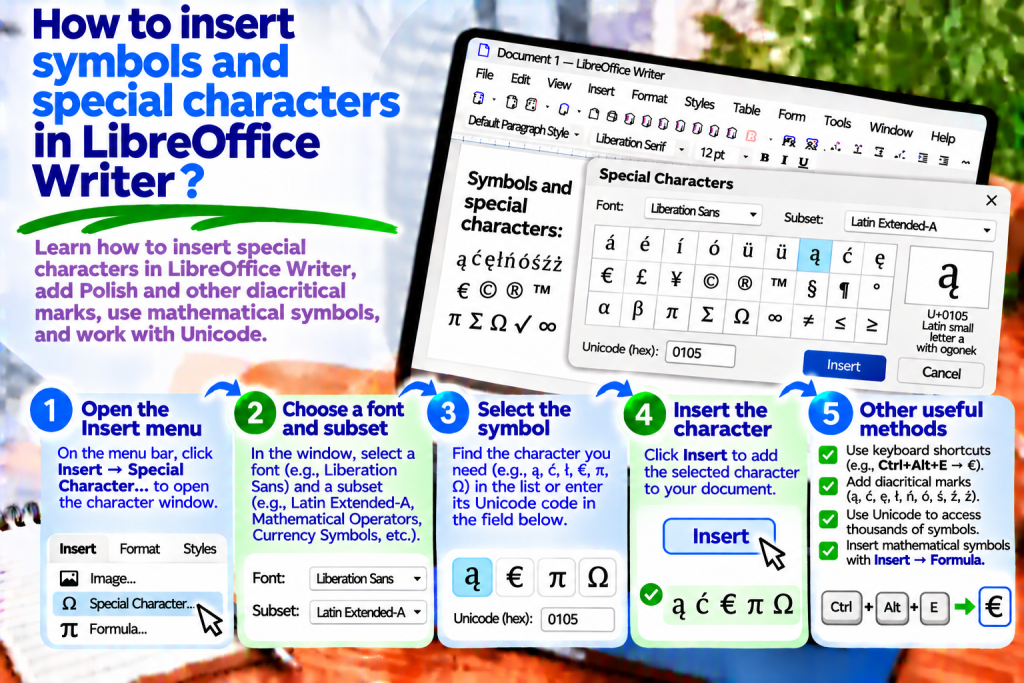
- From the top menu, select Insert → Special Character.
- In the window that opens, find the appropriate character.
- Click the selected symbol.
- Click Insert.
The character will appear in the document at the cursor position.
You can also double-click a symbol in the character table to insert it directly.
This allows you to quickly add characters that are not available on a standard keyboard.
Where to Find Special Symbols
After opening the Special Character window, you will see a table of available characters.
At the top of the window, you will find settings for selecting a font and character block.
This allows you to narrow down the number of displayed symbols.
For example, if you are looking for a Greek letter, select the appropriate Unicode block.
For mathematical symbols, check the blocks containing operators and other mathematical characters.
It is also worth using the search field.
This is much faster than browsing the entire table.
How to Search for a Specific Symbol
You do not need to remember where a particular character is located in the table.
The Special Character window includes a Search field.
You can enter the name of a symbol or part of its name.
The program will try to find the corresponding Unicode character.
However, remember that the character names used in searches are not always translated into Polish.
Therefore, in some cases, using the English name of a symbol may be helpful.
If the search does not return any results, you can select the appropriate Unicode block and find the character manually.
How to Insert Polish Diacritical Marks
Polish letters are common examples of characters with diacritical marks.
They include:
ą, ć, ę, ł, ń, ó, ś, ź, ż
And their uppercase equivalents:
Ą, Ć, Ę, Ł, Ń, Ó, Ś, Ź, Ż
The most convenient way to type them is directly using a Polish keyboard layout.
For example:
Right Alt + A inserts ą.
Right Alt + E inserts ę.
Right Alt + L inserts ł.
Right Alt + Z inserts ż.
Right Alt + X inserts ź.
You can type uppercase letters by adding the Shift key.
These shortcuts apply to the popular Polish Programmer keyboard layout.
If they do not work, check the keyboard language settings in your operating system.
How to Insert Foreign Diacritical Marks
Sometimes you may be preparing a document containing German, French, or Spanish words.
In that case, you may need letters such as:
ä, ö, ü, ß, é, è, ê, ñ, ç, à
Not all of these are available on a Polish keyboard.
Therefore, the easiest solution is to use Insert → Special Character.
Then select the appropriate font and find the letter you need.
Click the character to insert it into the document.
This allows you to spell foreign names, surnames, and quotations correctly without changing your keyboard layout.
How to Insert German Letters
Documents containing German words often include the following characters:
ä, ö, ü, ß
For example, you may need them when typing place names or preparing language learning materials.
To add a letter, open the Special Character window.
Then find the appropriate character and click Insert.
If you regularly write in German, adding a German keyboard layout to your operating system may be more convenient.
However, for individual words, Writer’s character table is usually sufficient.
How to Insert French and Spanish Characters
French uses letters such as:
é, è, ê, ë, à, ç, ù
In Spanish, you may encounter:
á, é, í, ó, ú, ñ, ü
Spanish questions and exclamations also use the following symbols:
¿, ¡
You can insert all these characters through the Special Character window.
This ensures that your document maintains correct spelling regardless of the language.
How to Insert the Degree Symbol
The degree symbol is particularly useful when writing temperatures and angles.
It looks like this:
°
For example, you can write:
The temperature is 22 °C.
To insert the symbol, select Insert → Special Character.
Then find the degree symbol in the table.
After selecting it, click Insert.
Remember that the degree symbol is not the same as a lowercase letter “o.”
Therefore, it is best to use the correct Unicode character.
How to Insert the Euro Sign and Other Currency Symbols
Financial documents often contain symbols representing different currencies.
The most common ones include:
| Symbol | Currency |
|---|---|
| € | Euro |
| $ | Dollar |
| £ | British pound |
| ¥ | Japanese yen |
| ₹ | Indian rupee |
| ₿ | Bitcoin |
To add a symbol, open the Special Character table.
Then select the block containing currency symbols.
Find the appropriate character and insert it into the document.
This allows you to prepare price lists, reports, and informational materials.
How to Insert Mathematical Symbols
LibreOffice Writer allows you to add many symbols used in mathematics.
For example, you may need:
| Symbol | Meaning |
|---|---|
| ± | Plus-minus |
| × | Multiplication |
| ÷ | Division |
| ≠ | Not equal to |
| ≤ | Less than or equal to |
| ≥ | Greater than or equal to |
| ∞ | Infinity |
| √ | Square root |
| ∑ | Summation |
| ∫ | Integral |
You can find all these characters in the Special Character window.
This is a convenient solution for individual symbols.
However, if you are preparing complex equations, it is worth using the LibreOffice Math formula editor.
How to Insert Greek Letters
Greek letters frequently appear in mathematics, physics, and other scientific fields.
For example, you can use:
α, β, γ, δ, θ, λ, μ, π, σ, Ω
To insert one of these letters, open the Special Character table.
Then select the block containing the Greek alphabet.
Click the letter you need and insert it into the document.
This allows you to write scientific notation correctly.
However, remember that Greek letters may look slightly different depending on the font used.
How to Insert the Section Symbol
The section symbol is frequently used in legal documents.
It looks like this:
§
For example:
§ 1 General Provisions
To insert the section symbol, select Insert → Special Character.
Then find the § symbol and add it to the document.
Remember that the section symbol has a specific purpose in legal writing.
Therefore, it should be used according to the structure of the document you are preparing.
How to Insert Copyright and Registered Trademark Symbols
In documents related to publications, products, and brands, you may need the following symbols:
© indicates copyright.
® indicates a registered trademark.
™ is a trademark symbol.
You can insert all these symbols using the Special Character table.
However, remember that simply adding a symbol does not create or confirm any particular legal rights.
Therefore, use these symbols according to their actual meaning.
How to Insert Arrows into Text
Arrows are useful when creating instructions and simple text-based diagrams.
You can use:
← ↑ → ↓ ↔ ⇒ ⇔
For example:
Open the menu → Select settings → Save changes
This allows you to show the sequence of steps without creating a separate drawing.
To insert an arrow, select the appropriate symbol from the character table.
This makes it easy to prepare short, clear instructions.
How to Insert Fraction Symbols
Some documents require simple fractions.
For example:
½, ¼, ¾
These characters are available in Unicode.
You can find them in the Special Character window.
Then insert the appropriate symbol into the document.
However, remember that not every fraction has its own individual character.
If you are preparing more complex mathematical expressions, it is better to use the formula editor.
How to Insert Multiple Symbols at Once
You do not have to close the Special Character window every time you insert a symbol.
You can select several characters from the available table.
Then insert the selected group into the document.
This is convenient when you need several letters from a foreign alphabet or different mathematical symbols.
It reduces the number of repetitive actions.
How to Use Recently Used Characters
Writer remembers recently inserted symbols.
Therefore, if you regularly use the same character, you do not have to search through the entire table every time.
Open Insert → Special Character.
Then find the Recent Characters section.
Select the appropriate symbol.
This allows you to insert a previously used character more quickly.
How to Add Symbols to Favorites
If you frequently use certain characters, it is worth saving them as favorites.
For example, these might include:
°, €, §, ©, ±, ≠, ≤, ≥
First, open the Special Character window.
Then select the appropriate symbol.
Use the Add to Favorites feature.
Writer allows you to save up to 16 favorite special characters.
This makes your most frequently used symbols easier to access.
What Is Unicode?
Unicode is a standard that assigns unique numbers to characters.
It allows computers to store and display letters from different alphabets, mathematical symbols, and many other characters.
For example:
| Character | Unicode Code |
|---|---|
| € | U+20AC |
| © | U+00A9 |
| § | U+00A7 |
| ° | U+00B0 |
| π | U+03C0 |
| Ω | U+03A9 |
Knowing a character’s code can make it easier to find the appropriate symbol.
However, remember that a character’s availability and appearance also depend on the font.
How to Insert Symbols Using Unicode Codes
If you know a character’s code, you can use the appropriate Unicode input methods.
The method depends on the operating system.
In Windows, you can use certain combinations involving the Alt key and the numeric keypad.
However, not every code works identically in all programs and configurations.
Therefore, in LibreOffice Writer, the simplest and most universal method remains Insert → Special Character.
This means you do not have to memorize codes.
How to Insert Special Characters Using a Keyboard Shortcut
LibreOffice also provides a keyboard shortcut for opening the Special Character window.
In many configurations, you can use:
Ctrl + Shift + S
On Mac computers, the corresponding combination may use the Command key.
However, remember that shortcut availability may depend on the operating system and program configuration.
If the shortcut does not work, use Insert → Special Character from the menu.
How to Change the Font of a Symbol
Not all fonts contain the same set of characters.
Therefore, a selected symbol may sometimes look different than expected.
To change this, open the Special Character window.
Then select a different font.
Check how the symbol you need appears.
After inserting it, you can also change the formatting of the character in the document.
However, it is worth using fonts that properly support the selected symbols.
This makes the document’s appearance more predictable when opened on other computers.
Why Does a Symbol Appear as a Square?
This is one of the most common problems.
Instead of the expected character, you may see an empty square or another replacement symbol.
This usually means that the selected font does not contain the required character.
In this case, select the problematic symbol.
Then try changing the font.
You can also choose another version of the character from the available Unicode table.
This often restores the correct appearance.
Why Aren’t Polish Characters Working?
If you cannot type letters such as ą, ę, ł, or ż, the problem may not be related to LibreOffice Writer.
First, check the keyboard layout in your operating system.
Make sure the appropriate language and layout are selected.
Then test the combination using the right Alt key.
It is also worth checking whether another program is intercepting the keyboard shortcut.
If the problem persists, you can temporarily use the Special Character window.
Why Does a Symbol Change Appearance After Saving a Document?
A character’s appearance depends partly on the font used.
If you open a document on a computer that does not have the same font installed, the program may substitute another font.
As a result, the symbol may look different.
Therefore, when preparing documents for sharing, it is worth using widely available fonts that support the required characters.
You can also consider exporting the document to PDF.
However, before sending the file, check that all symbols are displayed correctly.
Do Special Symbols Work in PDF?
Yes. Special characters can be displayed correctly in PDF documents.
However, it is important to use appropriate fonts and prepare the file properly.
Before exporting, check that all symbols are visible in Writer.
Then select File → Export As → Export as PDF.
After saving, open the finished document.
Pay particular attention to mathematical symbols, Greek letters, and characters from less common fonts.
This will help you avoid problems when sharing the document.
How to Quickly Insert Frequently Used Symbols
If you only need one character, the easiest method is to use the character table.
Open Insert → Special Character.
Then search for the symbol and click Insert.
If you regularly use the same characters, add them to your favorites.
When writing in a foreign language, consider changing your keyboard layout.
This allows you to choose the most convenient method for your work.
Most Common Mistakes When Inserting Special Characters
The first mistake is replacing the correct symbol with a similar-looking letter.
For example, the degree symbol ° should not be replaced with a lowercase letter “o.”
Another problem is using fonts that do not support the selected characters.
It is also important to watch out for symbols that look similar but have different meanings.
This is particularly relevant to mathematical and technical symbols.
Therefore, before finishing your work, check that the symbols you used are correct.
Inserting special characters in LibreOffice Writer is easier than it may seem.
The most important feature is Insert → Special Character, which allows you to browse and insert symbols available in different fonts.
You can use Polish and foreign diacritical marks, mathematical symbols, currency signs, arrows, and Greek letters.
It is also worth remembering that you can search for symbols and add them to your favorites.
If you frequently write in foreign languages, changing your keyboard layout may be helpful.
For individual symbols, however, the built-in character table is usually the best solution.
With these features, you can prepare documents containing the correct symbols and notation, whether you are writing instructions, a report, an academic paper, or ordinary text.