Imagine you are preparing materials for learning a foreign language. Next to a listening exercise, you want to include a pronunciation recording. Similarly, a short video showing how to perform a particular task would be useful in an equipment instruction manual.
Do you have to send all these materials separately? Not necessarily.
LibreOffice Writer allows you to add audio and video files to documents. This means you can combine text, illustrations, and multimedia in a single document.
However, it is important to know that handling recordings is different from inserting ordinary images. The file format, operating system, and how the document is saved all matter.
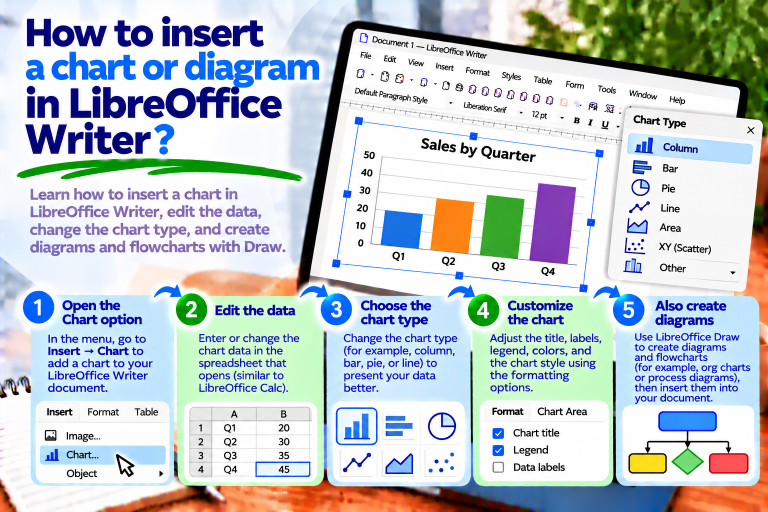
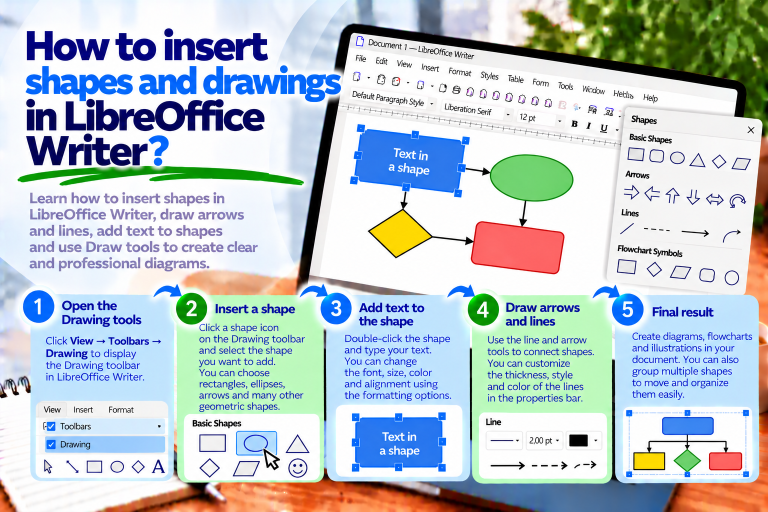
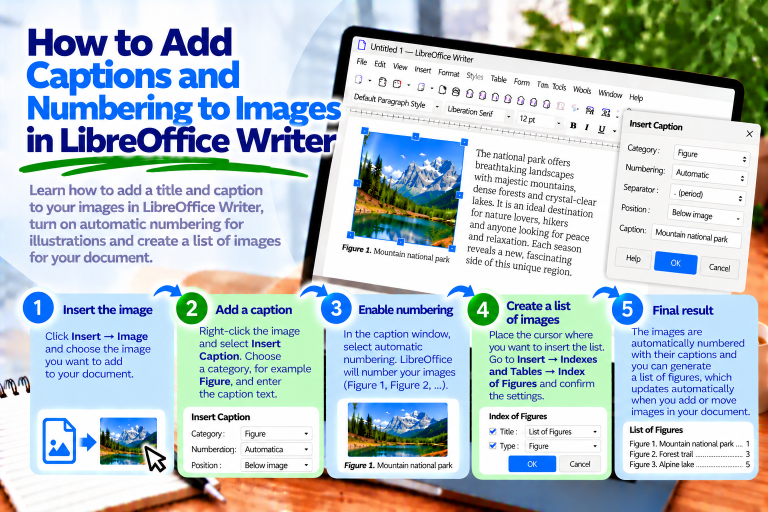
In this guide, you will learn how to insert an audio or video file in LibreOffice Writer, play recordings, change the position of multimedia objects, and prepare your document for sharing.
Does LibreOffice Writer Support Audio and Video Files?
Yes. LibreOffice Writer allows you to insert multimedia files directly into a document.
You can use this feature when preparing educational materials, instructions, reports, and documentation.
For example, a document can contain a narration recording, part of a conversation, or an instructional video.
After adding multimedia, Writer displays an appropriate object that you can select and control using playback tools.
However, not every format will work on every computer.
Therefore, before sending the completed document, it is worth checking whether the recording plays correctly.
How to Insert an Audio File in LibreOffice Writer
Adding an audio recording is relatively simple.
First, prepare an audio file saved on your computer.
Then follow these steps:
- Open a document in LibreOffice Writer.
- Place the cursor where you want to insert the recording.
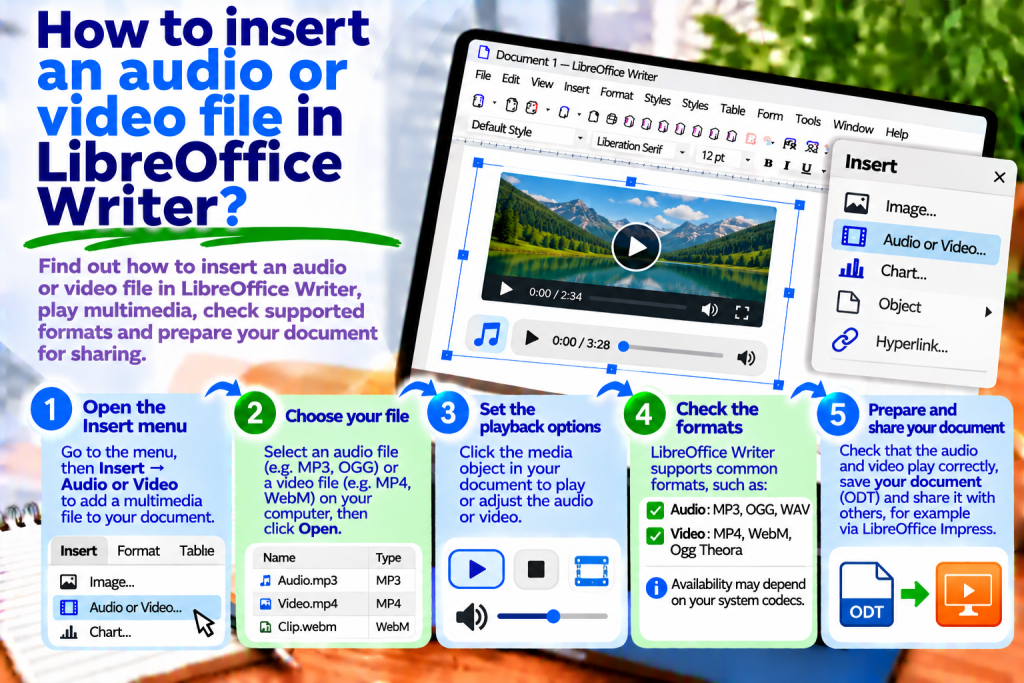
- Select Insert → Media → Audio or Video.
- Locate the appropriate file on your computer.
- Decide whether you want to insert a link to the source file.
- Click Open.
Writer will add a multimedia object to the document.
Depending on the program configuration, it may appear as an icon or another element that allows playback.
This makes the recording accessible directly from the document.
How to Insert an MP3 File
MP3 is a popular audio recording format.
You can use it to add voice commentary, instructions, or language practice materials.
First, prepare an MP3 file.
Then open Writer and select Insert → Media → Audio or Video.
Choose the recording and confirm your selection.
After adding the file, check whether you can play it.
Remember that format support also depends on the operating system and available multimedia components.
Therefore, the MP3 extension alone does not guarantee that a file will work correctly on every device.
How to Insert a Video File in LibreOffice Writer
Adding a video is similar to inserting an audio recording.
First, prepare the appropriate video file.
Then:
- Open a Writer document.
- Place the cursor in the desired location.
- Select Insert → Media → Audio or Video.
- Locate the video on your computer.
- Check the file linking option.
- Click Open.
Writer will then place a multimedia object in the document.
You can select it and try playing it using the available tools.
This is useful when you want to combine written instructions with a short instructional video.
How to Insert an MP4 Video
MP4 is commonly used to store videos.
However, it is important to remember that the MP4 extension does not specify all the technical details of a recording.
Two MP4 files may use different methods of encoding video and audio.
As a result, one video may work correctly while another causes problems.
To insert an MP4 file, use Insert → Media → Audio or Video.
Then select the appropriate file.
After inserting it, test playback.
If the video does not work, the cause may be an unsupported codec rather than the file extension itself.
How to Play an Audio or Video File
After inserting a recording, you can use the multimedia playback toolbar.
First, click the audio or video object.
Then locate the Media Playback toolbar.
Click the Play button.
If the file is supported, the program will start playing it.
For videos, the picture may appear within the multimedia object area.
For audio recordings, the most important element will be the sound being played.
This allows you to check the material without opening a separate program.
How to Stop or Pause a Recording
During playback, you can use the basic playback controls.
Play starts or resumes playback.
Pause temporarily pauses the recording.
Stop ends the current playback.
Additionally, the multimedia toolbar may provide volume adjustment, muting, and repeat options.
This allows you to control recordings conveniently while working with the document.
How to Change the Volume of an Audio File
A recording does not always have the appropriate volume level.
Therefore, Writer provides basic audio controls.
First, select the multimedia object.
Then locate the playback toolbar.
Use the volume slider to adjust the sound level.
If you need to temporarily turn off the sound, use the mute function.
However, remember that these settings do not replace editing the audio file itself.
If the recording is too quiet or contains background noise, it is best to improve it using an appropriate audio editor.
How to Use the LibreOffice Media Player
LibreOffice also has a separate tool for previewing audio and video files.
To open it, select:
Tools → Media Player
Then open the appropriate file.
You can check its contents before adding it to the document.
If the recording works correctly, use the Apply button to insert it into the current document.
This helps you avoid adding an incorrect file.
Which Audio Formats Does LibreOffice Writer Support?
Multimedia format support depends on the operating system and available libraries and codecs.
In practice, you may encounter MP3, WAV, and OGG files, among others.
However, this does not mean that all of them will work identically on every computer.
Therefore, it is best to start with a quick test.
First, open the file in the LibreOffice Media Player.
Then check whether the recording plays without problems.
Only afterward should you add it to the actual document.
Which Video Formats Can Be Inserted?
As with audio, video support depends on the operating system environment.
You may encounter MP4, AVI, WebM, and other formats.
However, the file extension alone is not enough to determine compatibility.
The codecs used to encode video and audio also matter.
Therefore, before preparing a document for other people, it is worth testing the video on the computer where it will be played.
If the material does not work, consider converting it to a more widely supported format with appropriate encoding.
What Is the Difference Between Embedding a File and Linking to It?
When inserting multimedia, you may see a Link option.
If you select it, the document will reference the source file.
This means its availability may depend on where the recording is stored on the computer.
However, when the linking option is disabled, LibreOffice may embed the file in the document.
Keep in mind that embedding is not supported in the same way for all formats.
Therefore, after saving the document, check whether the multimedia still works.
Does an Audio File Increase the Document Size?
This depends on how the recording is added.
If the file is embedded, the document may become significantly larger.
For example, a recording that is several megabytes in size can considerably increase the overall document size.
However, when using a link, the document may remain smaller because it references an external file.
This approach has a limitation, though.
If you move or delete the source recording, the document may lose access to it.
Therefore, the choice of method depends on how you intend to share the materials.
How to Move a Video to Another Position in the Document
A multimedia object may occupy a specific area on the page.
If you want to change its position, first select the object.
Then check the available anchoring and arrangement settings.
Depending on the object type and how it was inserted, you may be able to adjust its position.
However, remember that multimedia objects do not always behave exactly like ordinary images.
Therefore, check the document layout after changing the position.
How to Resize a Video Object
A video may take up too much space on the page.
In this case, select the multimedia object.
Then check whether resize handles are available.
You can also use the appropriate object position and size settings.
Try to maintain the video’s aspect ratio.
This will prevent the video from appearing stretched.
However, remember that resizing the object does not change the resolution of the original file.
How to Add a Description to a Recording
Simply placing a file in a document is not always enough.
Readers should know what the recording contains.
Therefore, it is worth adding a short description.
For example:
Recording 1: Pronunciation of Basic English Phrases
Or:
Video 1: Configuring Printer Settings
You can place the description in a regular paragraph next to the multimedia object.
This helps readers understand more quickly why the recording was added.
For educational materials, it is also worth including the recording’s duration.
How to Add an Audio File to Educational Materials
Audio recordings can supplement language exercises, instructions, and training materials.
For example, you can prepare a document containing a dialogue and its recording.
First, enter the exercise text.
Then add the audio file.
Below the recording, include a short instruction, such as:
Listen to the dialogue, then answer the questions.
This helps readers understand how to use the material.
It is also worth adding a transcript, especially if the document needs to be accessible to people with hearing difficulties.
How to Add an Instructional Video to a Document
A video can be useful when a written description alone is not enough.
For example, suppose you are preparing instructions for assembling a device.
First, describe the individual steps.
Then add a video showing how to perform them.
Below the recording, include information about its contents.
This allows readers to use both written instructions and video material.
However, remember that the document should remain understandable even without playing the video.
Therefore, important information should not be provided exclusively in the recording.
Can You Insert a YouTube Video?
Inserting a local video file is not the same as embedding a video from YouTube.
Writer does not work like a website editor that can directly display a YouTube player.
Therefore, the simplest solution is to add a hyperlink to the video.
First, copy the video’s URL.
Then select the text that should link to the recording.
Use the shortcut:
Ctrl + K
Enter the website address and confirm the changes.
This allows readers to open the video in their web browser.
How to Add a Link to an Audio or Video File
You do not always have to place a recording directly in the document.
Sometimes adding a link is more convenient.
For example, you can create the following text:
Open the Instructional Recording
Then select it and press Ctrl + K.
Enter the web address leading to the recording.
After confirmation, the text will become a hyperlink.
This keeps the document small while allowing readers to open the material in an appropriate program or web browser.
However, remember that the link will only work as long as the referenced file or website remains available.
Will Audio and Video Still Work After Saving the Document?
Not always.
Much depends on the document format, how the file was inserted, and the environment in which it will be opened.
Therefore, it is best to perform a simple test.
First, save the document in ODT format.
Then close Writer and reopen the saved file.
Check whether the recording is still accessible.
If you are using a link, also make sure the source file is in the correct location.
This will help you avoid problems when sharing the materials later.
Do Multimedia Files Work After Saving to DOCX?
The DOCX format is widely used for exchanging documents.
However, compatibility of multimedia objects between different editors is not guaranteed.
Therefore, after saving a document as DOCX, it is worth checking whether audio and video still work.
If the recipient will use Microsoft Word, it is best to test the document in that program.
If problems occur, adding a hyperlink to the recording may be a safer solution than relying on an embedded object.
Do Audio and Video Files Work in PDF?
This is one of the most important questions when preparing multimedia documents.
Standard export from LibreOffice Writer to PDF should not be treated as a way to preserve a working audio or video player.
Therefore, do not assume that a video embedded in an ODT document will be playable in the finished PDF file.
If readers need to access the recording after opening the PDF, a more practical solution is to include a hyperlink.
You can also add a QR code linking to the online material.
This allows readers to open the recording outside the document.
How to Share a Document with Multimedia Files
Before sending the document, check how the recordings were added.
If you use links to local files, recipients may also need those files.
Therefore, it is worth preparing a separate folder containing the document and all the necessary materials.
Then check whether the file references still work after moving the folder.
If the document will be shared online, you can consider placing the recordings somewhere accessible to recipients and adding appropriate hyperlinks.
However, remember to check access permissions.
This will help you avoid situations where readers can see a link but cannot open the recording.
Why Won’t an Audio File Play in LibreOffice Writer?
There may be several reasons.
First, check whether the file works in a regular media player.
Then open Tools → Media Player and try playing the recording.
If the problem persists, check the file format and available codecs.
It is also worth making sure the recording has not been moved or deleted.
If the document uses a link to the source file, changing its location may prevent playback.
Why Doesn’t a Video Display an Image?
Sometimes a video file contains audio, but no picture is visible.
This may be caused by an unsupported video codec.
Therefore, first check the video in another media player.
Then test it in the LibreOffice Media Player.
If the problem persists, consider preparing the file in a different format or using a different encoding method.
It is also worth checking whether your current system configuration supports that type of multimedia.
Why Does Multimedia Stop Working After Moving a Document?
The problem most often involves links to source files.
If a document references a recording stored in a particular folder, moving the file may break the link.
Therefore, before sending the materials, check the location of all recordings.
It is also worth opening the document on another computer.
This will help you determine whether the recipient can access the multimedia.
How to Remove an Audio or Video File from a Document
If a recording is no longer needed, you can remove its object.
First, select the multimedia object in the document.
Then press Delete.
Writer will remove the selected object.
However, remember that removing an object from the document does not automatically delete the original file from your computer.
This means you can still use the recording in other materials.
Is It Better to Insert Multimedia or Add a Hyperlink?
The choice depends on how the document will be used.
If the material will be opened locally in LibreOffice, inserting a multimedia object may be convenient.
However, if the document will be shared with many recipients using different programs, a hyperlink is often a better solution.
For PDF files, a link to the recording is usually more practical than an embedded object.
Therefore, before deciding, consider where the document will be opened and whether recipients will have access to the source files.
Most Common Mistakes When Inserting Audio and Video
One common mistake is assuming that every MP4 or MP3 file will work on every computer.
In reality, multimedia support also depends on codecs and the operating system.
Another problem is moving a document without the files referenced by its local links.
Additionally, you should not assume that exporting to PDF will preserve video playback functionality.
It is also important to check the document size, especially when it contains large recordings.
Therefore, before sharing the completed material, it is best to test all multimedia files.
What Is the Fastest Way to Insert an Audio or Video File?
Open a document in LibreOffice Writer.
Then select Insert → Media → Audio or Video.
Choose the appropriate file and click Open.
After adding the recording, select the object and use the playback button.
If you want to check the file first, open Tools → Media Player.
This allows you to test the recording before placing it in the document.
Inserting audio and video files in LibreOffice Writer allows you to create documents containing not only text and images but also audio recordings and videos.
The most important feature is Insert → Media → Audio or Video, which allows you to add the appropriate file to the document.
You can also use the LibreOffice Media Player to check recordings.
However, remember that correct playback depends on the file format, codecs, operating system, and how the document is saved.
If you plan to share the material with other people, also check whether the files have been embedded or linked to the document.
When preparing a PDF, it is usually best to consider adding a hyperlink to the recording.
This makes it easier for recipients to access the materials while keeping the document convenient to use.
The most important thing is to test the files beforehand. This will help you avoid playback problems and prepare a document that truly serves its intended purpose.