The standard dot next to each item is clear, but it does not always suit the document. A task list may need squares, instructions may require clear numbers, and a complex plan may need several different levels. Fortunately, you do not have to delete an existing list and create it again.
LibreOffice Writer allows you to change the appearance of existing bullets and numbering. You can choose a different symbol, modify the numbering style, set indents, and create several list levels. This makes it easy to adapt the appearance of a list to the type of document.
How to Change Bullet Symbols in LibreOffice Writer
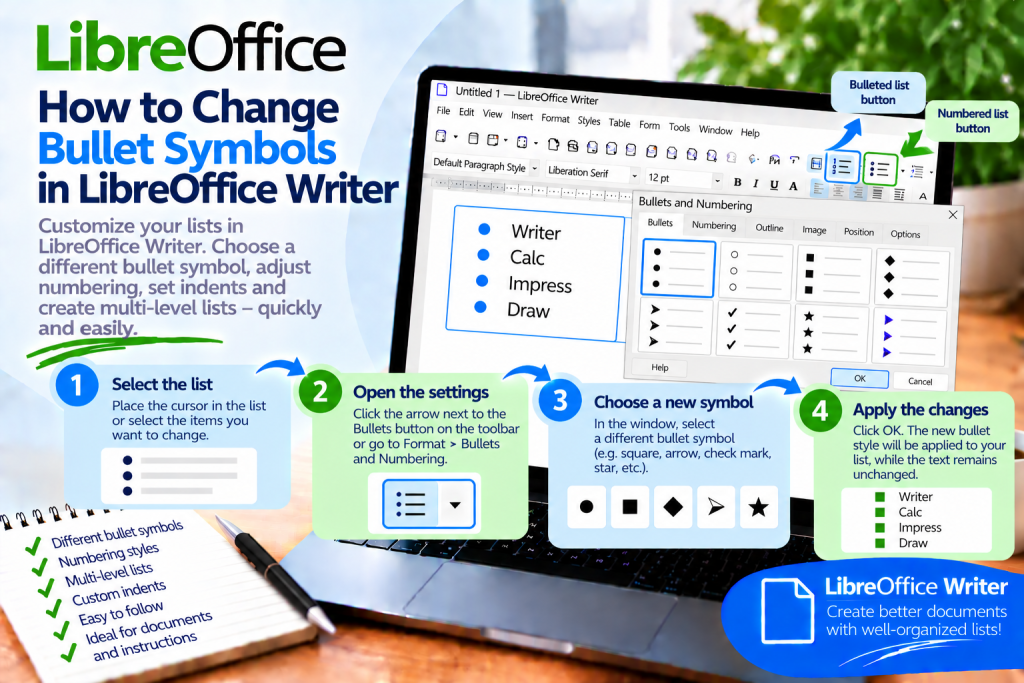
If the list is already created, place the cursor in one of its items or select the items you want to change.
Then open the bullets and numbering settings. Depending on your version of LibreOffice, you can find the appropriate commands in the Format menu and in the context menu available by right-clicking the list.
In the settings window, you can choose a different type of bullet.
After confirming, Writer will change the list symbols while the text remains in place.
This means you do not have to re-enter individual items.
How to Quickly Choose a Different Bullet Style
The simplest method is to use the list buttons available on the toolbar.
If the appropriate button provides access to additional settings, you can display the available variants.
Then choose the symbol that best suits the document.
In practice, this is a convenient solution for short lists because the change takes only a moment.
However, if you need more precise control over the appearance, open the full bullet settings.
How to Change a Standard Dot to a Different Symbol
Suppose you have the following list:
• Writer
• Calc
• Impress
• Draw
You want to replace the standard dots with another symbol.
First, select the list. Then open the bullet settings and choose a different symbol.
After confirmation, all items can receive the new appearance.
This allows you to adapt the bullets to the style of the document without changing the content itself.
How to Choose a Custom Bullet Symbol
The predefined sets do not always contain the symbol you need. Writer therefore allows you to customize the bullet in more detail.
In the list settings, go to the configuration for the appropriate level. Then select the option to use a character as the bullet.
You can then choose a symbol available in the selected font.
For example, the list can use:
●
○
■
□
◆
✓
The choice depends on the type of document and the available characters.
Which Bullet Symbol Should You Choose?
Readability is the most important consideration.
A simple bullet works best for an ordinary list. A square, on the other hand, can work well for a task list or a list of requirements.
An empty circle can be useful for second-level items. More distinctive symbols should be used sparingly.
If every level uses a completely different decorative symbol, the list may become more difficult to read.
The appearance should therefore support the structure of the information rather than replace it.
How to Change a Bulleted List to a Numbered List
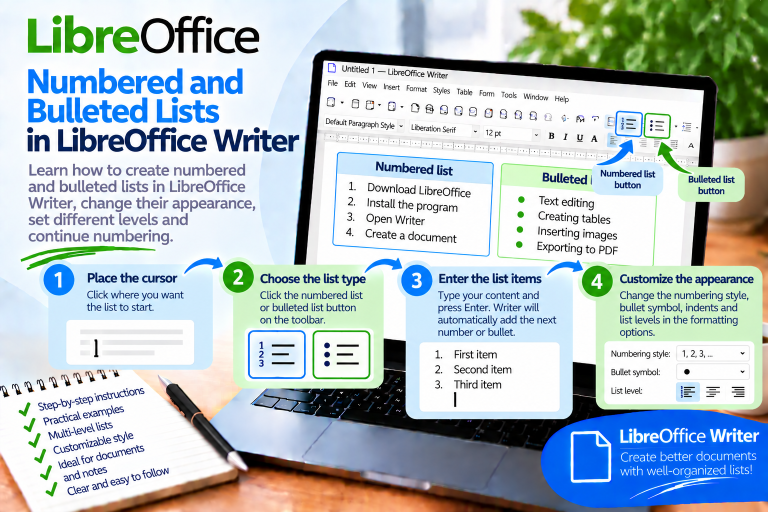
Sometimes you only realize after writing the text that the order of the items matters.
You do not have to remove the bullets manually.
Select the list and then apply numbering.
Writer can convert:
• download the program
• run the installer
• complete the installation
into a list:
1. Download the program
2. Run the installer
3. Complete the installation
The content remains the same. Only the way the individual items are presented changes.
How to Change a Numbered List to a Bulleted List
The operation also works in the opposite direction.
If the order is not important, select the numbered list and apply bullets.
The numbers will be replaced with bullets.
This allows you to change the structure of the list even after writing the entire section of the document.
How to Change the Numbering Style
Not every numbered list has to look like this:
1.
2.
3.
Writer provides different numbering styles, allowing you to adapt the format to the type of document.
For example, a list can use letters:
a
b
c
Roman numerals are also possible:
I
II
III
This makes it easier to distinguish between different types of lists.
How to Change Numbering on the Next Level
With multilevel lists, you do not have to use the same numbering style at every level.
The main level can use:
1
2
3
The second level can look like this:
a
b
c
The next level can use simple bullets.
This structure helps the reader quickly recognize the hierarchy of information.
How to Create a Multilevel List with Different Symbols
Suppose you are creating a course plan.
The main items are:
1. Writer
2. Calc
Under the Writer item, you have:
• text formatting
• tables
• images
Under the item related to tables, you want to add another level:
○ cell formatting
○ merging cells
○ sorting
In Writer, each level can have its own numbering or bullet style.
This keeps even a complex list clear.
How to Move an Item to a Lower Level
While creating a list, place the cursor in the selected item.
Then use:
Tab
The item can be moved to a lower list level.
If a different symbol has been configured for that level, Writer will apply the appropriate appearance.
This means you do not have to manually change the bullet for every subitem.
How to Return to the Previous List Level
If a subitem should become a main item again, you can use:
Shift + Tab
The item will be moved up one level.
As a result, Writer will also adjust its numbering or symbol according to the settings for that level.
This solution significantly speeds up the creation of more complex structures.
How to Change Bullet Indentation
The appearance of a list depends not only on the symbol. Its position is equally important.
Sometimes the bullet is too far from the margin. At other times, there is too much space between the symbol and the text.
In the list settings, you can control the position of the bullet and the text.
This keeps the list aligned and prevents it from unnecessarily taking up too much of the page width.
Why Should You Avoid Adjusting Indentation with Spaces?
Adding spaces before the text may seem like a quick solution. However, such a layout can easily fall apart.
After changing the font, the spacing may look different. A similar problem can occur after changing the page format.
Therefore, use the proper list and indentation settings.
As a result, Writer will preserve the defined structure even after later formatting changes.
How to Change the Distance Between the Bullet and the Text
With short list items, too much space can look unattractive.
On the other hand, very little spacing can make the symbol appear to merge with the text.
It is therefore worth adjusting the position of the elements in the list settings.
You will get the best result when the text in all items starts at the same position.
What’s more, in multilevel lists, each level should have a clearly recognizable position.
How to Change the Size of Bullet Symbols
The appearance of the bullet can also depend on the character used and its formatting.
If the symbol seems too large or too small compared with the text, check the settings for the character used by the list.
However, it is not worth creating oversized bullets. They should help readers identify consecutive items rather than dominate the text.
Therefore, it is usually best to keep their proportions similar to the font size used in the paragraphs.
Can You Change the Color of a Bullet?
With more advanced formatting, you can influence the appearance of characters associated with numbering and bullets using the appropriate character and style settings.
However, consistency is important.
If all bullets have a different color from the text, the effect may work well in a presentation-style document. In a formal report, however, a simpler appearance will usually be easier to read.
Above all, pay attention to contrast.
How to Create a List with Squares
Squares are often used in checklists.
For example:
□ Download the document
□ Check the contents
□ Make corrections
□ Save the file
To achieve this effect, select the appropriate symbol as the bullet character.
Then apply the setting to the entire list.
This ensures that all items maintain a consistent appearance.
How to Create a List with Check Marks
A check mark can work well for a list of features, benefits, or completed tasks.
The list might look like this:
✓ Document created
✓ Formatting checked
✓ Table added
✓ File saved
If the appropriate character is available in the font you are using, you can use it as a bullet.
However, remember that this symbol may suggest that a task has been completed. Therefore, it will not always be appropriate for an ordinary informational list.
How to Create a List with Empty Checkboxes
If the document is intended to be printed and completed by hand, an empty square can be useful.
For example:
□ Invoice
□ Contract
□ Attachment
□ Confirmation
After printing, the user can mark individual items with a pen.
This allows an ordinary Writer list to function as a simple checklist form.
How to Apply One Style to the Entire List
First, select all items that should look the same.
Then apply the selected bullet or numbering settings.
Writer will apply the chosen appearance to the selected area.
This is much faster than modifying each item individually.
It also reduces the risk of one item accidentally receiving a different symbol.
What to Do When Only One Bullet Changes
First, check the selection range.
If you are modifying only the current paragraph or a section with a different structure, the change may not affect all the expected items.
Therefore, it is worth selecting the entire list before changing its appearance.
Also check whether all items actually belong to the same list rather than being separate sections created independently.
How to Save Your Own List Style
If you want to use the same bullet style repeatedly, constantly setting symbols and indents manually becomes inconvenient.
In this situation, it is worth using list styles.
You can open the Styles panel using:
F11
Then go to the category related to list styles.
Styles allow you to create a consistent numbering and bullet format that can later be used in many places throughout the document.
Why Are List Styles Useful?
Suppose a document is dozens of pages long and contains many lists.
If each one has been formatted manually, changing their appearance later may require editing many sections.
Styles allow you to work much more consistently.
They also reduce the risk of one list having a different symbol, indentation, or numbering style from the others.
This makes styles particularly useful in instructions, reports, and technical documentation.
When Should You Use Bullets and When Should You Use Numbers?
The appearance of the list should reflect its meaning.
If the order does not matter, use bullets.
For example:
• Writer
• Calc
• Impress
If the reader should perform the steps in sequence, use numbering.
For example:
1. Open the document
2. Enter the text
3. Save the file
This way, the form of the list provides additional information about the content.
Are Decorative Symbols a Good Idea?
Sometimes, but they should be used in moderation.
A decorative bullet can look good in a flyer, invitation, or simple informational material.
In technical instructions, however, readability is the priority.
If the user starts paying more attention to the symbols than to the content, the bullets are no longer serving their purpose.
Therefore, simple symbols will be the best choice for most documents.
What Mistakes Should You Avoid When Changing a List Style?
The first mistake is manually entering a symbol before each paragraph. In this case, Writer does not treat the items as a real list.
Another problem is using multiple spaces to adjust indentation. Instead, use the proper list settings.
It is also best not to use too many different symbols in a single document. Three similar lists should look similar.
For complex documents, list styles are a good solution. They make it easier to maintain consistency.
What to Do If a Symbol Looks Incorrect After Changing It
Not every character is available in every font.
If an empty rectangle or an incorrect character appears after selecting a custom symbol, check the font being used.
Then select a symbol supported by the available typeface.
It is also worth considering what happens when the document is opened on another computer. If you use an unusual font, another user may not have it installed.
Therefore, for documents intended to be shared, it is best to use common and widely supported characters.
What Is the Fastest Way to Change Bullet Symbols?
If the list has already been created, select it or place the cursor inside it.
Then open the bullet settings and choose a new symbol.
After confirmation, Writer will apply the selected appearance.
If you only need a simple variant, use the available settings on the toolbar. For precise formatting, open the full list configuration.
Changing bullet symbols in LibreOffice Writer does not require creating the list again from scratch. You can modify existing bullets, change the numbering, choose a custom symbol, and customize individual levels.
For simple documents, the predefined options available through the list tools are sufficient. If you need more control, use the detailed numbering and bullet settings.
Remember about indentation as well. Do not adjust the position of text using multiple spaces because Writer provides proper settings for this purpose.
For larger documents, it is worth using list styles. They help ensure that subsequent lists maintain the same appearance and make later changes much easier.
Readability remains the most important consideration. A good bullet symbol organizes the content and helps readers quickly identify consecutive items. Therefore, a simple, consistently used symbol will usually work better than decorative but random embellishments.