A table can turn several hard-to-read paragraphs into an organized overview that can be understood in just a few seconds. In Writer, you can use it to create a price list, schedule, form, product overview, attendance list, or simple report. Importantly, you do not need to design it in a spreadsheet beforehand. Writer has its own tools for creating and later editing tables.
If you are just getting started, you only need to learn a few basic commands. Later, you can move on to merging cells, setting column widths, repeating headers, and more advanced formatting.
How to Insert a Table in LibreOffice Writer?
The most universal method is through the Table menu.
First, place the cursor exactly where you want the table to appear in the document.
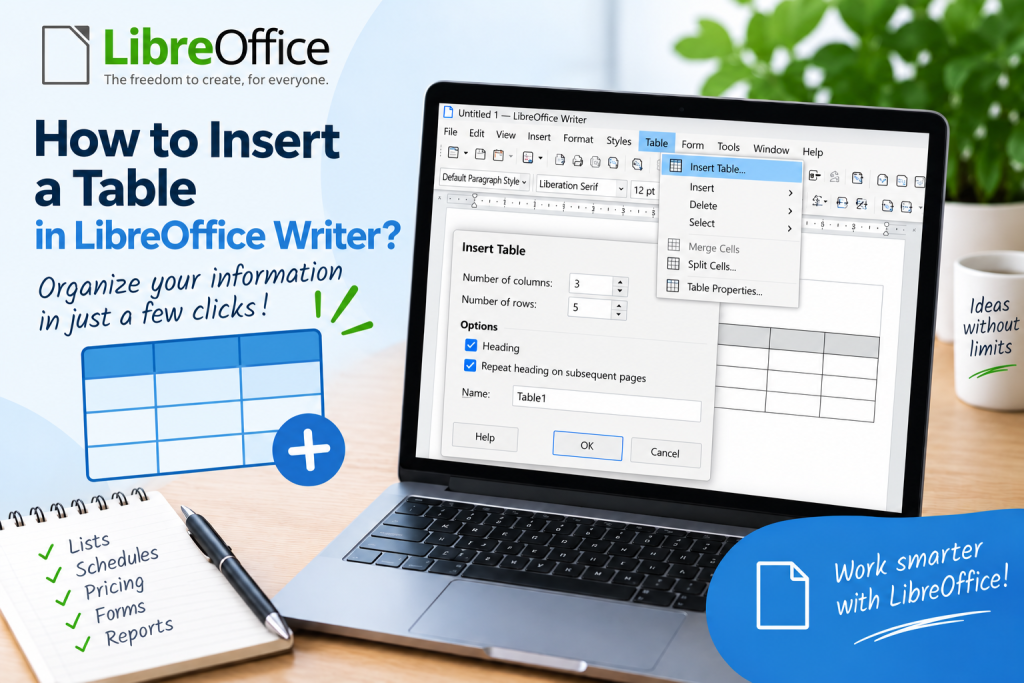
Then select:
Table → Insert Table
You can also use the keyboard shortcut:
Ctrl + F12
The Insert Table window will open.
Now specify the number of columns and rows. For example, if you are creating a simple table with a product name, price, and quantity, set 3 columns. The number of rows depends on the number of items you plan to enter.
After configuring the settings, confirm the operation.
The table will appear at the cursor position.
What Can You Set When Creating a Table?
It is worth taking a moment before automatically confirming the Insert Table window. It contains several useful settings that can save you from additional formatting later.
First of all, you specify the number of columns and rows.
You can also give the table a name. This is especially useful in complex documents containing many different tables.
Writer also allows you to create a header row. If the table spans several pages, you can set the header to repeat on subsequent pages.
This may seem like a small option, but it makes a huge difference with long tables. The reader does not have to return to the first page to check what each column represents.
How to Quickly Insert a Simple Table?
If you do not need additional settings, you can use the table icon on the toolbar.
Click the arrow next to the table icon.
You will see a small grid.
Move the mouse pointer over it to specify the number of columns and rows, then confirm your selection.
For example, selecting an area of 4 by 5 will create a table containing 4 columns and 5 rows.
This method works very well for small tables because it allows you to skip the additional settings window. The official LibreOffice documentation confirms that tables can be created both from the menu and directly from the grid available on the toolbar.
How to Enter Data into a Table?
Click the first cell and start typing.
To move to the next cell, press:
Tab
If you want to return to the previous cell, use:
Shift + Tab
This way, you do not have to reach for the mouse every time.
There is one more practical trick. If you place the cursor in the last cell of the table and press Tab, you can quickly continue working with additional rows.
How to Add a New Row?
A table does not have to have its final size from the beginning. If you run out of space while working, you can expand it.
Place the cursor in the table, then use the commands available in the menu:
Table → Insert
You can add rows above or below the current position.
Writer also allows you to specify the number of new rows and decide exactly where they should appear.
This is much more convenient than creating the entire table from scratch.
How to Add a New Column?
The process is similar.
Click the cell next to where you need a new column.
Then use the column insertion commands available in the Table menu or the context menu.
You can insert a column before or after the current one. If you select several columns, Writer also allows you to add multiple elements at once.
How to Change Column Width?
After entering data, you will quickly notice that not every column always needs the same amount of space.
A column containing numbers can be very narrow, while a product description requires much more space.
The easiest method is to place the cursor on the edge of a column. When the pointer changes appearance, drag the boundary to the left or right.
If you need more precise settings, open the table properties. There, you can control the width and arrangement of columns much more precisely.
Writer also provides commands for adjusting column widths to their contents and for distributing columns evenly.
How to Change Row Height?
You can adjust the row height to the amount of text in the cells.
In many cases, Writer will do this automatically. However, if you are preparing a form intended to be filled out by hand, you may need larger fields.
Select the appropriate rows, then use the table size settings.
You can also apply optimal row height. The program will then adjust the height to the content in the row.
How to Merge Several Cells?
Suppose the first row is intended to contain one large title spanning the entire width of the table.
First, select the cells you want to merge.
Then select the appropriate cell merging command from the Table menu.
Several separate fields will become one larger cell.
Writer preserves the contents of the merged cells, while the formatting of the first selected cell affects the resulting field.
How to Split a Cell?
You can also perform the opposite operation.
Select the cell you want to split and choose the cell splitting command.
Then specify the splitting method and the number of new cells.
This feature is useful when part of the table requires a more detailed layout than the other rows.
How to Set a Table Header Row?
If the first row contains column names, treat it as a header.
An example table might look like this:
Product | Price | Quantity | Value
It is worth visually distinguishing the header, but its role is not limited to appearance.
With a long table, Writer can automatically repeat header rows on subsequent pages. This option can be selected when creating the table.
This way, each subsequent page retains the context of the data.
How to Change the Appearance of a Table?
A basic table is functional, but it does not always look good.
Click inside the table and open its properties. You can change, among other things, the borders, background, spacing, and the position of the entire table relative to the page.
In addition, when creating a table, Writer provides ready-made table styles.
However, do not overdo the decorations. In tables containing data, readability remains the most important factor.
How to Convert Existing Text into a Table?
This is one of the features many users do not know about.
Suppose you have data written in the following way:
Jan Kowalski Warszawa 3200
Anna Nowak Kraków 4100
Piotr Wiśniewski Gdańsk 3700
If individual values are separated by tabs or other consistently used characters, you do not have to rewrite the data manually.
Select the text.
Then choose:
Table → Convert → Text to Table
Writer can use separators to create the appropriate columns. The text-to-table conversion feature is available directly in the program.
With larger amounts of data, this can save a lot of time.
Can You Paste a Table from LibreOffice Calc?
Yes. If the data is already in a spreadsheet, you do not have to create it again.
Select the range of cells in Calc and copy it.
Then go to the Writer document and paste the content.
Depending on the selected paste method, the data can be inserted into the document as, among other things, a spreadsheet object, HTML table, text table, or graphic. The official help also describes the option of pasting a range as an OLE object, which can later be edited by double-clicking it.
Therefore, before pasting, it is worth considering whether the table should be an ordinary part of the document or whether it should continue to retain spreadsheet functionality.
What to Do When a Table Continues onto the Next Page?
Large tables naturally span several pages. In this situation, maintaining readability is the most important consideration.
When inserting a table, you can choose to repeat header rows on subsequent pages. There is also an option to prevent the table from being split across pages, although it should be used carefully.
If the table is very long, a repeated header will usually be much more practical than trying to keep the entire table on one page.
How to Delete a Row, Column, or Entire Table?
Do not delete the contents of cells if you want to remove a structural element of the table. Clearing the text will leave an empty row or column.
Instead, select the appropriate element and use the deletion commands in the Table menu.
You can separately delete rows, columns, or the entire table.
Table in Writer or Calc Spreadsheet?
Writer works very well with simple overviews, forms, and tables that are part of a text document.
However, if you plan to perform many calculations, filter thousands of records, create charts, or analyze data, Calc will be a better choice.
You can then prepare the data in the spreadsheet and place the finished range in Writer.
This approach allows you to take advantage of the strengths of both programs instead of trying to perform complex calculations in a text document table.
Most Common Mistakes When Creating Tables
The first problem is creating a table using spaces. Such a layout may look correct on the screen, but changing the font or page width will quickly ruin it.
Another mistake is creating too many narrow columns. If the content becomes difficult to read, consider changing the page orientation to landscape or simplifying the data structure.
It is also worth remembering the header row. With a table spanning several pages, the absence of repeated column names makes it much more difficult to read.
You should also avoid formatting each cell randomly. Consistent borders, alignment, and header highlighting produce a much better result.
What Is the Fastest Way to Insert a Table in LibreOffice Writer?
If you only need a simple answer, follow three steps.
Place the cursor in the appropriate location.
Press Ctrl + F12.
Select the number of columns and rows, then confirm the settings.
The table is ready.
For a more complex document, however, it is worth spending a moment setting the header, table style, and how the table behaves on subsequent pages.
Inserting a table in LibreOffice Writer takes just a few seconds, but the capabilities of this tool are much greater than they may initially seem. You can quickly create rows and columns, merge and split cells, control their sizes, repeat headers on subsequent pages, and convert existing text into a ready-made table.
For quickly creating a table, it is worth remembering the Ctrl + F12 shortcut. For larger tables, use the table properties and the tools available in the Table menu. This will keep the document readable even after changing the text, adding more data, or preparing it for printing.