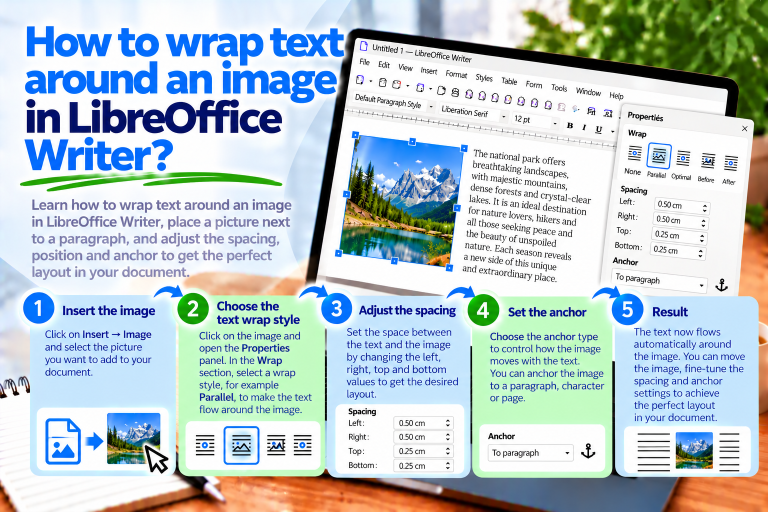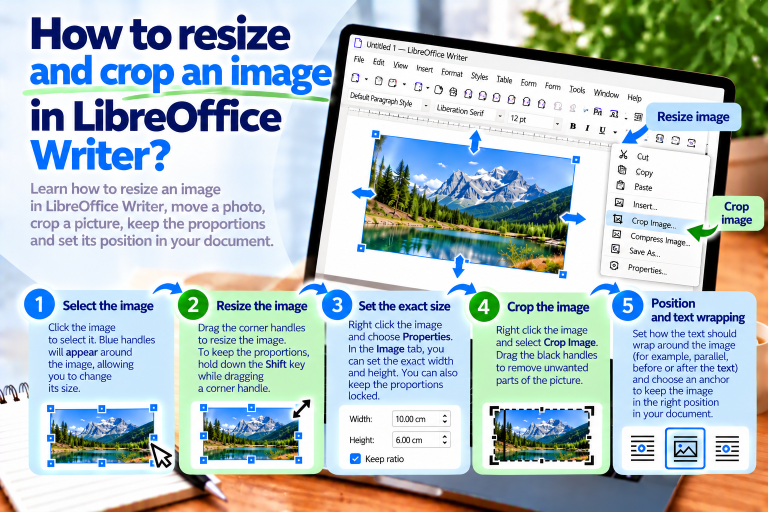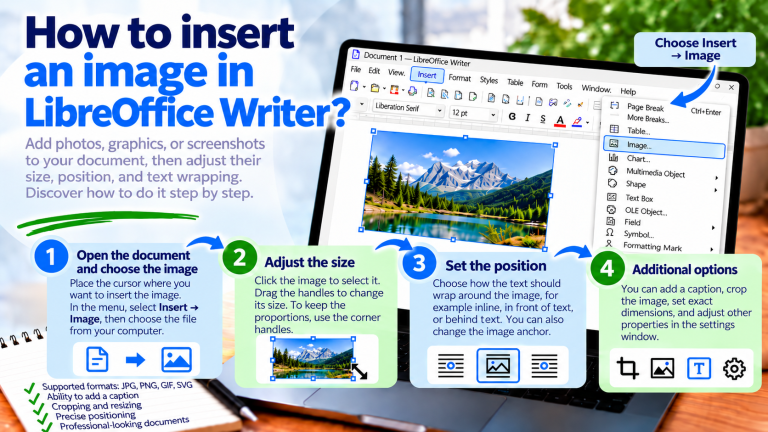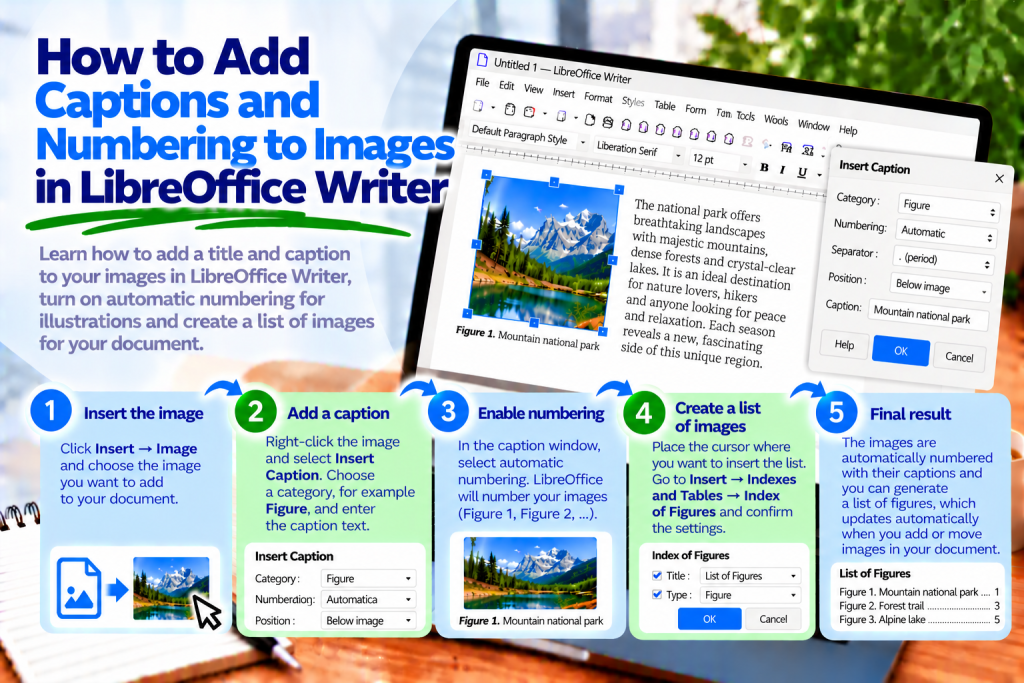
Imagine you are preparing a software user guide. You already have a dozen or so screenshots, and everything looks good until you suddenly add a new illustration at the beginning of the document. Now the subsequent numbers are incorrect, and fixing each caption individually takes more time than inserting the pictures.
Fortunately, LibreOffice Writer can do this work for you. You can add illustration titles, automatically number images, change the appearance of captions, and even create a list of all the images.
In this guide, you will learn how to set up image captions and numbering in LibreOffice Writer and how to avoid problems when editing the document later.
How to Add a Caption Below an Image in LibreOffice Writer
First, insert a picture into the document. Then select the image and open its context menu.
To add a caption:
- Right-click the image.
- Select Insert Caption.
- In the dialog box, specify the illustration category.
- Enter the caption text.
- Check the numbering settings.
- Confirm by clicking OK.
Writer will add a caption associated with the image.
This means you do not have to manually create a separate paragraph or enter the next illustration number.
What Should a Proper Image Caption Look Like?
A good caption should clearly explain what the image shows.
For example, you can use:
Illustration 1: LibreOffice Writer Main Window
Or:
Figure 2: Document Margin Settings
It is important to make the description specific.
Instead of simply entering “Screenshot,” it is better to provide the name of the window shown or the action being performed.
This helps readers identify the image content more quickly.
How to Set an Image Title
In Writer, an image title can mean two different things.
The first is a visible caption placed below or above the image.
The second is a title stored in the image properties, which is used, among other things, for document accessibility.
If you want readers to see the illustration name directly on the page, use Insert Caption.
However, if you need to add information about the image itself, open its properties and check the available title and description fields.
These two options serve different purposes, so they should not be confused.
How to Add Automatic Image Numbering
The greatest advantage of captions is the ability to number illustrations automatically.
Suppose a document contains three pictures.
After adding captions, Writer can create the following labels:
Illustration 1: Program Window
Illustration 2: Toolbar
Illustration 3: Page Settings
If you later insert another image between the first and second pictures, the numbering can be recalculated accordingly.
This means you do not have to manually correct all the captions.
However, remember to update the document fields, especially before saving the final version.
How to Update Illustration Numbering
After adding or removing images, the numbers may need to be refreshed.
The simplest solution is to use the shortcut:
F9
Writer uses this command to update document fields, including numbering based on the appropriate fields.
If you are working on a larger document, you can also use the update commands available in the Tools menu.
This makes it easier to maintain the correct illustration sequence.
How to Change the Caption Category Name
Not every document should use the word “Illustration.”
In an academic paper, you may prefer “Figure.” In a technical manual, “Diagram” may sometimes be more appropriate.
When adding a caption, you will find a category field.
You can select an existing category or enter your own name.
For example:
Figure 1: Diagram of Program Operation
Diagram 1: Data Flow
Photograph 1: Computer Workstation
This allows the labels to match the nature of the document.
Can You Have Separate Numbering for Pictures and Diagrams?
Yes. Writer allows you to use different caption categories.
Suppose a document contains photographs and technical diagrams.
You can then have:
Photograph 1: Workstation View
Photograph 2: Device Connection
Diagram 1: Connection Layout
Diagram 2: Information Flow
Each category can use its own numbering sequence.
This makes it easier to organize different types of visual materials.
How to Change the Illustration Numbering Format
You do not always have to use ordinary Arabic numerals.
In the caption dialog box, you can check the available numbering formats.
Depending on the program settings, different methods of numbering consecutive elements may be available.
For example, these may include Arabic or Roman numerals.
The most important thing is consistency.
If all illustrations belong to one category, it is best to use the same numbering format throughout the document.
How to Add a Caption Above an Image
By default, illustration captions are often placed below the image.
However, Writer also allows you to change their position.
When adding a caption, check the Position field.
Then select the setting that matches your intended layout.
You can place the caption above or below the image, depending on the available options.
This allows you to adapt the document to school, university, or company requirements.
Should an Image Caption Be Above or Below the Picture?
In many documents, illustration captions are placed below images.
This allows readers to see the image first and then its description.
However, some institutions have their own formatting rules.
Therefore, before preparing a thesis or report, it is worth checking the applicable guidelines.
If you do not have specific requirements, consistency is the most important consideration.
All captions of the same type should appear in similar positions.
How to Change the Appearance of an Image Caption
A caption does not have to look identical to the document’s regular text.
You can change its font, size, alignment, and spacing.
The most convenient way to do this is by using the paragraph style assigned to captions.
Open the Styles panel using the shortcut:
F11
Then find the style responsible for captions.
After modifying it, you can give all captions using that style a consistent appearance.
This means you do not have to format each description individually.
How to Center a Caption Below a Picture
Centered captions often look good below illustrations positioned in the middle of a page.
If you want to change the alignment of a single caption, place the cursor inside it.
Then press:
Ctrl + E
Writer will center the paragraph.
However, if all captions should look the same, it is better to modify the appropriate paragraph style.
This ensures consistency throughout the document.
How to Change the Font Size of a Caption
Sometimes a caption should be slightly smaller than the main text.
For example, if the main text is 12 points, you can use 10- or 11-point captions.
However, this is not a mandatory rule.
First, check the document requirements.
Then modify the appropriate caption style.
This ensures that all illustrations have consistently formatted descriptions.
How to Add Spacing Between an Image and Its Caption
Too little spacing can make a caption look as though it is stuck to the picture.
On the other hand, too much space makes it difficult to tell which image the description belongs to.
Therefore, it is worth maintaining moderate spacing.
The best approach is to control it through the paragraph settings and caption style.
This prevents you from having to add empty lines manually.
It also makes the document easier to edit later.
How to Automatically Add Captions to New Images
If you are creating a document containing many illustrations, manually opening the caption dialog box can become inconvenient.
Writer provides an option to automatically add captions to selected types of objects.
You can find the appropriate settings in the program options, under the LibreOffice Writer section for automatic captions.
There, you can specify the category and numbering method.
This allows newly inserted images to receive captions automatically.
It is particularly convenient when preparing extensive instructions.
How to Add a Caption to an Image Already in the Document
You do not need to delete the image and insert it again.
Simply select the existing image.
Then right-click it and choose Insert Caption.
Enter the appropriate description and set the category.
After confirmation, Writer will add a caption to the previously inserted image.
This allows you to organize even a document that already contains many pictures.
How to Edit an Existing Image Caption
If a description contains an error or needs clarification, you can correct it.
Click the caption text and edit its contents.
For example, instead of:
Illustration 4: Program Window
You can enter:
Illustration 4: Print Settings Window
However, be careful not to accidentally delete the automatic numbering field.
Therefore, it is best to modify the descriptive part while leaving the number generated by Writer intact.
How to Remove an Image Caption
Sometimes an illustration does not need a caption.
In this case, you can delete the corresponding caption text.
However, remember that the caption feature may create an additional structure associated with the object.
Therefore, after removing the caption, check whether the image is still in the correct position.
If an unnecessary frame or empty element remains, you may need to adjust the object’s structure.
How to Include Chapter Numbers in Image Numbering
In larger documents, numbering that includes chapter numbers is useful.
For example, you may want:
Illustration 1.1: Program Main Window
Illustration 1.2: Toolbar
Illustration 2.1: Document Settings
The first number indicates the chapter, while the second specifies the illustration’s position in the sequence.
To achieve this, the document should use properly configured heading numbering.
Then, in the caption settings, you can include the chapter number.
This allows illustration numbering to better reflect the document’s structure.
Why Don’t Chapter Numbers Appear in Captions?
The problem is usually caused by headings that have not been configured correctly.
Simply typing a number before a chapter title is not enough.
Writer must recognize the document structure.
Therefore, it is worth using heading styles and the heading numbering feature.
You can then link illustration numbering to the appropriate chapter level.
How to Refer to an Image in the Text
In longer documents, you often need to refer to a specific illustration.
For example, you can write:
The configuration method is shown in Illustration 3.
If you enter the number manually, it may become outdated after adding new images.
Therefore, it is better to use cross-references.
In Writer, you can insert a reference to the appropriate caption using the Cross-reference feature.
This allows the referenced illustration number to be updated along with the document.
How to Insert a Cross-Reference to an Illustration
First, place the cursor where you want to refer to the image.
Then open the cross-reference feature.
Select the appropriate reference type and the specific illustration.
You can choose how the reference should be displayed, such as its number or other available information.
After confirmation, Writer will insert the appropriate field.
This makes it easier to maintain accurate references even after changing the order of images.
How to Create an Automatic Table of Figures
If a document contains many images, a table of figures will be useful.
It may look like this:
Illustration 1: Program Main Window …….. 3
Illustration 2: Page Settings …….. 5
Illustration 3: Formatting Panel …….. 8
To create such a list, first add proper captions to all images.
Then place the cursor where you want the list to appear.
Select Insert → Table of Contents and Index → Table of Contents, Index or Bibliography.
In the settings, select Table of Figures as the type.
After confirmation, Writer will create the list based on the appropriate captions.
How to Update a Table of Figures
After adding more images, the table of figures may need to be updated.
Right-click it.
Then select the command to update the index or table.
Writer will read the captions again and adjust the list.
This means you do not have to manually add new illustrations or correct page numbers.
Why Doesn’t an Image Appear in the Table of Figures?
The most common cause is an incorrectly added caption.
If you type ordinary text below a picture, Writer may not recognize it as a caption belonging to a specific category.
Therefore, it is best to use Insert Caption.
Also check whether the appropriate category was selected when creating the table of figures.
Then update the list.
This may allow the missing illustrations to appear.
How to Keep a Caption Together with Its Image
When editing a document, a picture may move to another page.
Therefore, it is important to associate the image with its caption correctly.
The Insert Caption feature helps keep both elements together because Writer can place the image and its caption within a shared structure.
However, it is worth checking the anchoring and positioning settings.
This reduces the risk of a caption remaining on one page while its image appears on the next.
Can You Add a Caption to an Image in a Table?
Yes, although the behavior may depend on the image’s position and the cell structure.
If the image is inside a table, select it and check whether Insert Caption is available.
Then add the appropriate description.
However, pay attention to the cell width and spacing.
This prevents the caption from disrupting the table layout.
How to Add an Image Source Below a Caption
In reports and academic papers, you sometimes need to indicate where an image came from.
For example, below an illustration, you can include:
Source: Own work.
Or:
Source: Manufacturer’s documentation.
It is important to provide the actual source of the image.
If the image comes from an external publication, also check the conditions for its use.
This makes the document more credible.
Does an Image Caption Replace Alternative Text?
No. These are two different elements.
A caption is visible in the document and helps readers understand the meaning of an illustration.
Alternative text, on the other hand, describes the image for accessibility purposes.
Therefore, it is worth using both when an image conveys important information.
For example, the caption might read:
Illustration 2: Page Settings Window.
The alternative text, however, can describe the visible interface elements in greater detail.
This makes the document more accessible to different readers.
Why Does Image Numbering Start at the Wrong Number?
First, check whether all captions belong to the appropriate category.
If some illustrations use the “Figure” category while others use “Illustration,” separate numbering sequences may be created.
Then check whether the numbers were entered automatically or manually.
It is also worth updating the fields using F9.
This makes it easier to identify the cause of the problem.
Why Doesn’t the Caption Number Change After Adding a New Image?
The most common causes are fields that have not been updated or numbers entered manually.
If a number was created as ordinary text, Writer will not recalculate it automatically.
Therefore, use Insert Caption.
Then update the document fields.
As a result, the numbering should reflect the current order of illustrations.
How to Prepare Image Captions for PDF Export
Before saving the document, check all illustrations.
First, update the fields and the table of figures.
Then make sure the captions are positioned next to the correct images.
It is also worth checking the page breaks.
When finished, select File → Export As → Export as PDF.
Then open the finished file and check the numbering and caption positions.
This will help you avoid problems in the final version of the document.
Most Common Mistakes When Numbering Images
The first mistake is entering illustration numbers manually. This makes later changes more difficult.
Another problem is using different categories without a clear reason.
It is also worth avoiding manual formatting of each caption individually. Instead, it is better to use paragraph styles.
Do not forget to update the fields and the table of figures.
Following these rules will keep the document organized even after adding more pictures.
What Is the Fastest Way to Add an Image Caption and Numbering?
First, insert an image into the document.
Then right-click it and select Insert Caption.
Enter the description and choose the appropriate category.
After confirmation, Writer will add the numbered caption.
If you later change the order of illustrations, update the fields using F9.
This allows you to manage captions without manually correcting subsequent numbers.
Image captions and numbering in LibreOffice Writer help organize documents containing photographs, diagrams, and screenshots.
The most important feature is Insert Caption, which allows you to add a description and an automatic illustration number.
You can also change the caption category, position, and appearance. In more complex documents, it is worth using chapter numbering, cross-references, and an automatic table of figures.
By using styles, captions will maintain consistent formatting, while updating fields will help prevent numbering errors.
If you are preparing instructions, a report, or an academic paper, it is worth using automatic captions from the very first illustration. As a result, editing the document later will become much easier, even when the number of images starts growing rapidly.