A picture placed next to a paragraph can completely change the appearance of a document. Instead of a large empty space, you get text that naturally flows around the image. This effect is often seen in magazines, product catalogs, and informational materials.
In LibreOffice Writer, you can decide whether text should appear next to a picture, only above and below it, or even follow the shape of an illustration. Importantly, you do not have to move each paragraph manually.
In this guide, you will learn how to wrap text around an image in LibreOffice Writer, choose the appropriate wrapping option, adjust spacing, and solve the most common problems with image positioning.
What Is Text Wrapping Around an Image?
Text wrapping determines how paragraphs are arranged relative to an image.
Suppose you add a product photo to a short description. Without the appropriate settings, the text may appear only above and below the image.
After enabling text wrapping, the paragraph can also appear next to the picture.
This allows you to make better use of the available space on the page. It can also make the document look more professional.
However, remember that text wrapping is not the same as moving an image. The first feature controls how text behaves, while the second determines the position of the image itself.
How to Wrap Text Around an Image
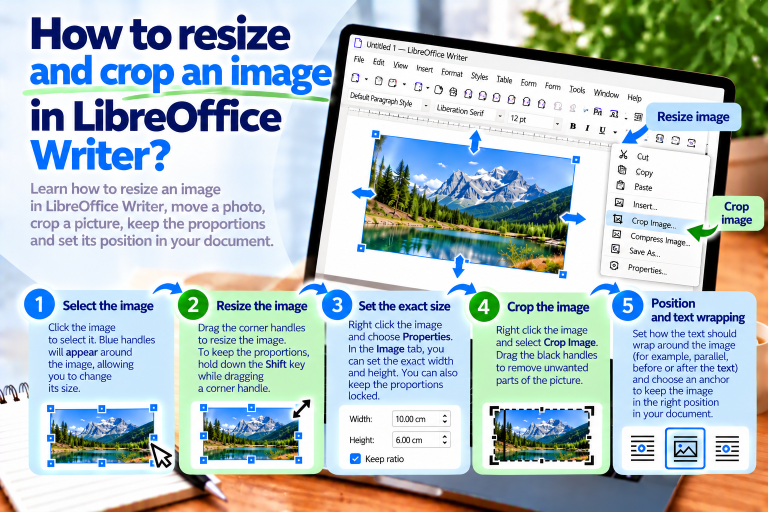
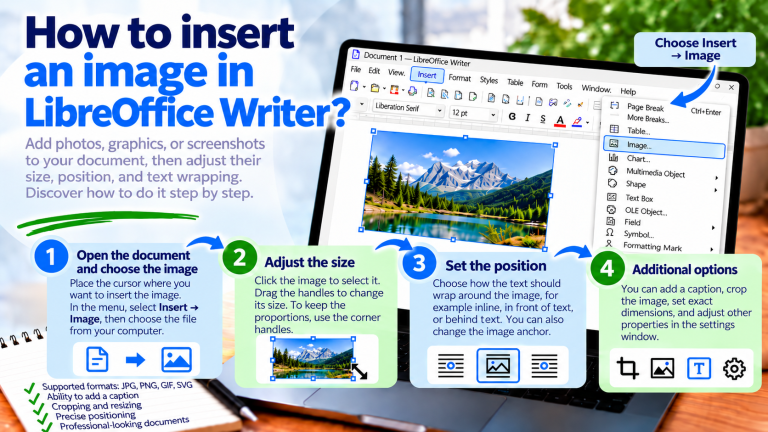
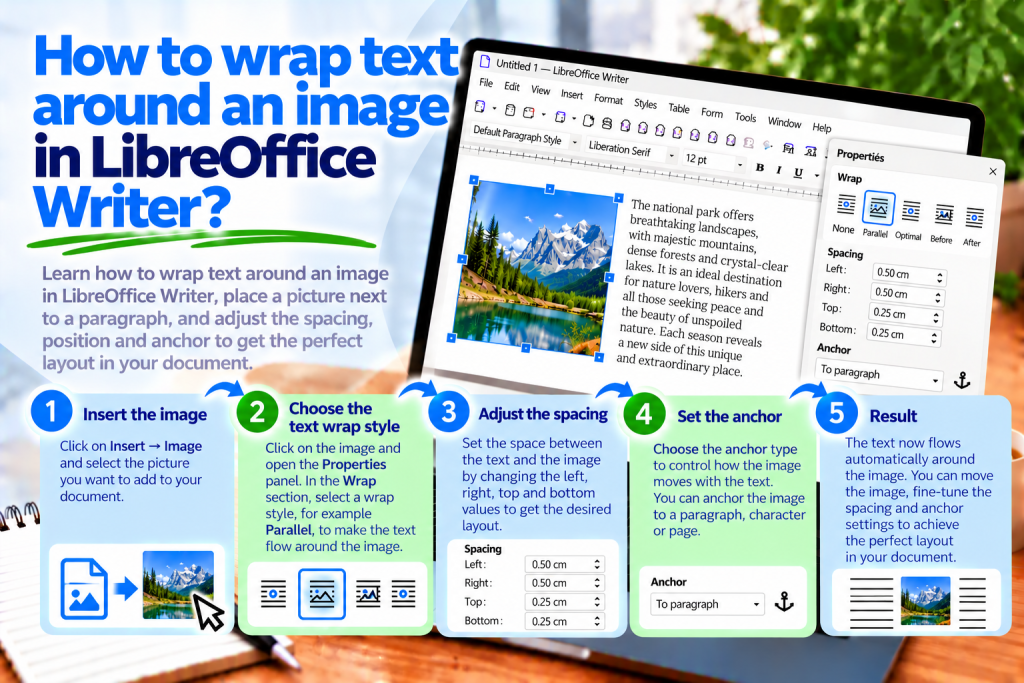
First, open the document containing the picture. If the image has not yet been added, select Insert → Image and choose the appropriate file.
Then follow these steps:
- Click the image to select it.
- Right-click the image.
- Select Wrap or Text Wrapping, depending on the program version and interface.
- Choose the appropriate text wrapping option.
- Check how the document layout has changed.
If you need additional settings, open the image properties and go to the Wrap tab.
This allows you to control not only how text wraps around the image but also the spacing between the image and the text.
What Text Wrapping Options Does LibreOffice Writer Offer?
Writer provides several options for arranging text around an object.
The most important ones are:
None: Text appears above and below the image.
Before: Text can wrap around the left side of the image.
After: Text can wrap around the right side of the image.
Parallel: Text can appear on both sides of the image.
Optimal: Writer automatically chooses the wrapping arrangement based on the available space.
Through: The image can overlap the text area.
Each option produces a different effect. Therefore, it is best to choose the setting that suits the type of document.
How to Position an Image Without Text Wrapping
You do not always need text to appear on the sides of a picture.
When creating instructions, it is often better to place a screenshot between two paragraphs.
In this case, select the image and choose Wrap → None.
Writer will keep the text above and below the image.
This clearly separates the illustration from the surrounding content.
This solution works particularly well for large screenshots, charts, and diagrams.
How to Place Text on the Right Side of an Image
Suppose you want to place a picture on the left and its description on the right.
First, select the image and check its anchoring. Then choose the appropriate positioning method.
Move the image to the left side of the text area.
Now select a wrapping option that allows text to appear on the right side of the image.
In Writer, one of the settings that provides this behavior is After.
This allows the description to appear next to the picture instead of occupying a separate paragraph below it.
How to Place Text on the Left Side of an Image
You can achieve a similar effect on the other side of the document.
First, position the image closer to the right margin.
Then select the Before wrapping option.
If there is enough available width, the text will flow along the left side of the picture.
This arrangement works well for short product descriptions and informational materials.
However, it is worth checking the image width. An oversized image may leave too little room for readable text.
How to Wrap Text Around Both Sides of an Image
If a picture is positioned in the middle of the page, you can allow text to flow around both sides.
To do this, select Wrap → Parallel.
Writer will attempt to arrange the text around the image according to the available space.
However, the result depends on the image width, margins, and paragraph length.
Therefore, this option works best with relatively small illustrations.
If very little space remains on either side, the text may look unattractive.
How Does Optimal Text Wrapping Work?
The Optimal option allows Writer to choose the text wrapping arrangement automatically.
The program takes into account the available space on either side of the image.
If there is too little room on one side, the text may be moved to the other.
This means you do not have to manually adjust every paragraph.
However, remember that optimal wrapping does not always produce the layout that best suits a particular design.
Therefore, check the result after applying this option.
How to Place an Image Behind Text
Writer also provides the Through wrapping option.
In this case, the image does not force the text to move away from it in the usual way.
As a result, the image can occupy the same area as the paragraphs.
This setting can be useful when creating decorative elements in a document.
If you want to place the image behind the text, also check the option for moving the object to the background.
However, keep readability in mind. A picture containing many details can make letters difficult to read.
Therefore, in informational documents, it is best to avoid accidentally overlapping text and images.
How to Set the Spacing Between Text and an Image
Simply enabling text wrapping is not always enough.
If the text is positioned directly against the edge of a picture, the document may look cramped.
Therefore, it is worth adding extra spacing.
First, select the image and open its properties. Then go to the Wrap tab.
There, you will find settings that determine the distance between the text and the individual edges of the image.
You can specify spacing:
- On the left.
- On the right.
- At the top.
- At the bottom.
This prevents the text from touching the image directly.
What Spacing Should You Use Between an Image and Text?
There is no single value that works for every document.
In practice, you can start with a small gap, such as 0.2 cm or 0.3 cm.
Then check how the paragraph looks.
If the text is still too close to the picture, increase the distance.
However, in a very narrow column, excessive spacing can take up valuable room.
Therefore, it is best to adjust the settings to the image size and page width.
How to Position an Image Next to a Specific Paragraph
Sometimes a picture should appear next to a particular section of text.
For example, you are describing a program feature and want to place a small screenshot on the right.
First, insert the image near the appropriate paragraph.
Then anchor it to the paragraph and choose the correct text wrapping option.
This associates the image with that section of the document.
If you later add text before the paragraph, the image can move along with it.
This is much more convenient than manually positioning the image relative to the entire page.
What Does Image Anchoring Mean?
Anchoring determines which element of the document an image is associated with.
Writer allows you to anchor an image to a page, paragraph, or character, among other options.
The As Character setting is also available.
Each option affects how the image behaves during editing.
For example, anchoring to a paragraph is useful when a picture should accompany a specific description.
The As Character setting, on the other hand, makes the image behave similarly to a text element.
Why Doesn’t Text Wrapping Work with the As Character Setting?
This is one of the most common causes of problems.
If an image is anchored as a character, Writer treats it as an element within a line of text.
In this case, freely wrapping text around the sides of the image does not work in the same way as it does with an object anchored to a paragraph.
Therefore, change the anchoring first.
Right-click the image and select Anchor → To Paragraph.
Then configure the appropriate text wrapping option again.
This allows the image to be positioned next to the paragraph.
How to Move an Image Without Changing Text Wrapping
Text wrapping and image positioning are two separate settings.
If you want to move an image, first check its anchoring.
Then you can try dragging the image with the mouse.
If you need greater precision, open the image properties and go to the Position and Size tab.
Here, you can adjust its position relative to the available reference elements.
This makes it easier to create a consistent page layout.
How to Wrap Text Around a Circular Image
Standard text wrapping often uses the rectangular area of an image.
However, not every illustration has a rectangular shape.
Suppose you add a circular logo with a transparent background.
In this situation, you can use contour wrapping.
This allows the text to follow the shape of the image instead of maintaining a large rectangular gap.
However, the result depends on the image itself and whether the contour is configured correctly.
How to Enable Contour Wrapping
First, select the image.
Then open the wrapping properties and look for the Contour option.
If it is available, enable it.
Writer will take the image contour into account when arranging the text.
This allows you to create a more natural layout around irregularly shaped images.
However, remember that the contour option is not available for every type of object or every wrapping method.
How to Edit an Image Contour
Sometimes the automatic contour does not produce the expected result.
In this situation, you can adjust it.
Right-click the image and select Wrap → Edit Contour.
Writer will open a tool that allows you to modify the wrapping area.
Then adjust the contour to match the shape of the illustration.
When finished, apply the changes and close the editor.
This allows the text to follow the visible part of the image more closely.
When Should You Use Contour Wrapping?
This feature works best with irregularly shaped images.
These may include logos, product illustrations, or objects with transparent backgrounds.
For example, a picture with its background removed may look more natural when the text follows its edges.
However, standard wrapping is usually sufficient for ordinary rectangular photographs.
Therefore, there is no need to complicate the document layout unnecessarily.
How to Make Text Start Below an Image
Sometimes you do not want the next paragraph to appear next to the image.
In this case, you can select None for text wrapping.
As a result, the text will appear above and below the image.
However, if you only need this behavior for a particular section, check the additional wrapping settings and paragraph layout.
This makes it easier to separate the description from the next part of the document.
How to Set Text Wrapping Around Multiple Images
If a document contains many pictures, it is worth maintaining a consistent arrangement.
For example, all product photographs can appear on the left, with descriptions on the right.
First, configure the appropriate wrapping method for the first image.
Then apply similar settings to the remaining images.
It is also worth keeping the pictures the same width and using similar spacing.
This will make the entire document look more organized.
Can You Wrap Text Around an Image in a Table?
An image can also be placed inside a table cell.
However, in this case, the available space is limited by the cell width.
Therefore, you may not always achieve the same effect as with an image placed directly on the page.
If you want a stable layout with a picture and description next to each other, using two table columns may sometimes be simpler.
Place the image in one column and the text in the other.
This allows you to control the arrangement without complicated positioning.
Why Doesn’t Text Appear Next to an Image?
First, check the image width.
If the picture occupies almost the entire available text area, there may not be enough room on either side.
Next, check the wrapping method.
If None is selected, the text will appear only above and below the image.
It is also worth checking the anchoring.
This makes it easier to identify which setting is preventing the expected layout.
Why Does an Image Move While Typing?
The problem may be caused by the image being associated with a paragraph.
If you add text before the image, Writer may change its position as the document layout changes.
Therefore, check the anchoring first.
Then make sure the image is associated with the correct section of text.
In instructions, it is often best for the image to remain next to the paragraph it illustrates.
This prevents later editing from accidentally separating the illustration from its description.
Why Does Text Overlap an Image?
The most common cause is an inappropriate wrapping method.
If you select Through, the image can occupy the same area as the text.
In this situation, change the wrapping to an option that matches your intended layout.
For example, you can use Parallel or Optimal.
Then adjust the spacing.
This prevents the text from accidentally overlapping the picture.
Why Does Text Wrapping Change After Opening the Document in Word?
LibreOffice Writer and Microsoft Word support similar image positioning features, but they do not always interpret them identically.
Therefore, after saving a document in DOCX format, the layout of some images may look different.
This problem particularly affects more complex positioning and contour wrapping.
If the document will be edited in different programs, it is worth using the simplest possible layout.
Also, after saving the file, check the image arrangement in the target program.
How to Prepare a Document with Text Wrapping for PDF Export
Before exporting, check the position of all images.
Then make sure the text does not overlap the images or leave unnecessary empty spaces.
It is also worth checking the page breaks.
After finishing your edits, select File → Export As → Export as PDF.
Then open the finished file and check the result.
This allows you to identify any problems before sending the document.
Which Text Wrapping Option Should You Use for Instructions?
For instructions containing screenshots, a simple layout usually works best.
Large illustrations should be placed between paragraphs.
Therefore, None is often a good wrapping option.
Smaller icons or compact images, however, can appear next to the text.
This keeps the document readable and prevents it from looking cluttered.
Which Text Wrapping Option Should You Use for a Product Catalog?
In catalogs, you often want to place a picture on one side and a description on the other.
In this case, it is worth using one-sided or parallel wrapping.
Then set the images to the same width.
It is also a good idea to use similar spacing around each photograph.
This ensures that individual products are presented consistently.
Which Text Wrapping Option Should You Use for a Report?
In reports, readability and a predictable layout are the most important considerations.
Therefore, large charts and diagrams are usually best placed between paragraphs.
Smaller illustrations, on the other hand, can appear next to short descriptions.
It is also worth adding captions below images.
This makes it easier for readers to find the appropriate illustration.
Most Common Mistakes When Setting Text Wrapping
The first mistake is trying to move an image using multiple spaces or empty paragraphs. This approach can easily disrupt the document layout.
Another problem is an oversized image. If the picture occupies almost the entire page width, there is no room for text to wrap around it.
You should also be careful with the Through setting because it can cause text and images to overlap.
Do not forget about anchoring either. It often determines whether an image stays next to the correct paragraph.
What Is the Fastest Way to Wrap Text Around an Image?
If you want to place a picture next to text, first select the image.
Then check its anchoring and choose the appropriate wrapping option.
For a simple layout, you can use Parallel or Optimal.
If the text should appear on only one side, select Before or After.
Finally, set a small gap between the picture and the paragraph.
This allows you to quickly create a readable layout without manually moving the text.
Text wrapping around an image in LibreOffice Writer allows you to make better use of the available page space and create a more attractive document.
You can place text on the left or right side of a picture, use parallel wrapping, or let the program choose the arrangement automatically.
It is also worth remembering anchoring. If an image is set as a character, it will not behave in the same way as a freely positioned image.
With appropriate spacing, the text will remain readable, and the picture will not interfere with the content.
For more complex illustrations, you can also use contour wrapping. For simple instructions, however, an arrangement without text wrapping will often work better.
The most important thing is to choose a wrapping method that suits the type of document. As a result, pictures will work naturally with the text, and later editing will become much more convenient.