


LibreOffice from Scratch – Part 3: Calc – Spreadsheet
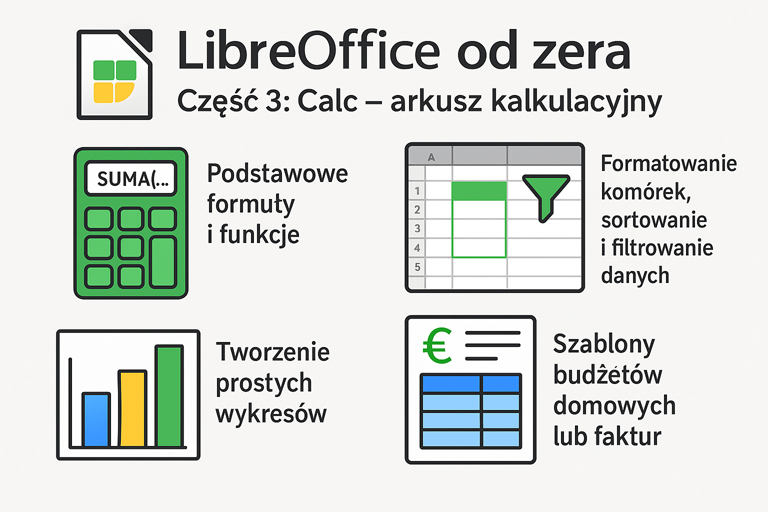
LibreOffice Calc is a free and highly functional spreadsheet that is an excellent alternative to Microsoft Excel. In this part, you will learn basic formulas, data filtering, chart creation, and ready-made templates that are useful in everyday work with data—from household budgets to invoices.
Basic formulas and functions
In a spreadsheet, data is entered into cells, while calculations are performed using formulas that begin with the = sign.
Example functions:
=SUM(A1:A5) – adds numbers from the range A1 to A5,
=AVERAGE(B1:B10) – calculates the average value,
=IF(C2>100;”Expensive”;”OK”) – if the value in C2 exceeds 100, it returns “Expensive”, otherwise it displays “OK”.
You can find all functions under Insert → Function or by clicking the fx icon on the toolbar.
Cell formatting
To better organize your data, you can format it. Right-click the selected cell and choose Format Cells, then set:
data type (currency, percentages, dates),
font and background color,
borders and text alignment.
Additionally, basic formatting options are also available on the toolbar.
Sorting and filtering data
If you have a large table, sorting and filtering will help organize it.
Sorting:
Select the data together with the headers,
Go to Data → Sort,
Choose the column and specify the sorting order.
Filtering:
Go to Data → AutoFilter,
A drop-down list will appear next to each column—you can filter, for example, only “January” or values above 100 PLN.
Creating simple charts
With charts, you can quickly visualize data.
Select the data (e.g., labels + numbers),
Click Insert → Chart,
Choose a chart type: bar, line, pie, and others,
Customize colors, title, axis labels, and legend.
Calc supports more than 10 chart types—including XY, stacked, and column charts.
Ready-made templates – budget, invoices, lists
You do not have to create everything from scratch. LibreOffice offers ready-made templates that you can customize according to your needs.
How to download templates:
File → Templates → Manage Templates → Get more templates online,
Select and install a template, for example:
monthly household budget,
invoice with VAT summary,
shopping list with cost summary.
You can also save your own document as a template:
File → Templates → Save as Template
LibreOffice Calc allows you to:
quickly analyze and process data,
sort and filter even very large tables,
use ready-made solutions such as templates for budgets and invoices.
In the next part, we will focus on LibreOffice Impress. We will show how to create attractive presentations containing text, graphics, and animations.