


LibreOffice from Scratch – Part 5: Draw – Vector Graphics
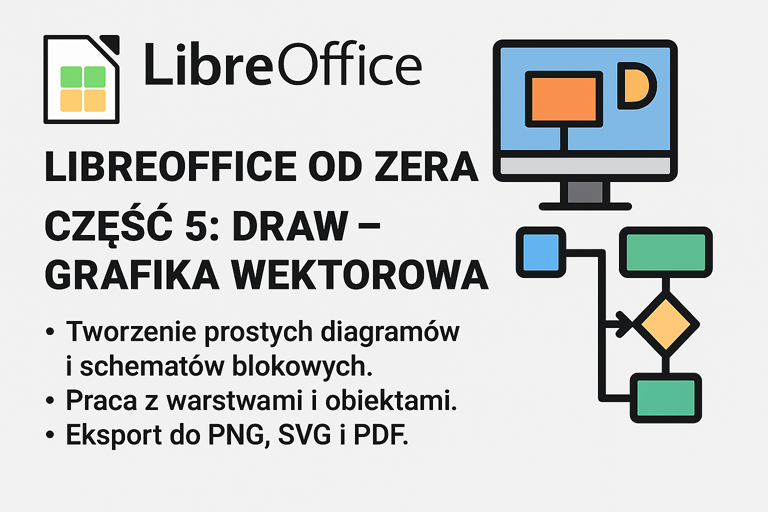
LibreOffice Draw is a free tool for creating vector graphics—ideal if you want to quickly prepare a diagram, flowchart, mind map, flyer design, or a simple technical illustration.
It does not require drawing skills—just a few clicks are enough to create a clear project.
Creating diagrams and flowcharts
Draw offers a set of tools for working with shapes and logical connections—great for:
flowcharts (processes, actions, decisions),
organizational and structural diagrams,
simple mind maps or educational drawings.
How to create a simple diagram:
Select a shape from the toolbar (e.g., rectangle, oval, cloud).
Place it on the workspace and double-click it to add text.
Connect elements using arrows or anchored connectors.
You can freely change colors, borders, and fonts.
Draw automatically “snaps” connectors to the correct points—so everything stays organized automatically.
Working with layers and objects
Layers
LibreOffice Draw supports multi-layer work, similar to graphic design programs:
each layer can contain different elements (e.g., background, frames, descriptions),
you can hide, lock, or edit them independently.
This allows you to maintain order even in more complex drawings.
Objects and operations:
Grouping objects (Ctrl + G) and ungrouping them (Ctrl + Shift + G),
Aligning objects with each other or with the page,
Rotating, scaling, copying, changing order (bring forward/send backward),
Using grids and guides—helps with precise placement of elements.
Export to PNG, SVG, and PDF
You can save the finished drawing in the following formats:
PNG – ideal for a website or document,
SVG – scalable vector graphics, e.g., for print or the web,
PDF – for sending, archiving, or inserting into other documents.
Export:
File → Export → choose the format and quality.
You can also save only a selected part of the drawing, which is useful when creating icons or partial diagrams.
Draw is a great tool for anyone who:
creates educational materials, instructions, or presentations,
works with diagrams and structures,
needs a simple program for vector graphic editing.
You do not need experience—just imagination and a few clicks.