


How to install LibreOffice on Windows 11 – step-by-step instructions
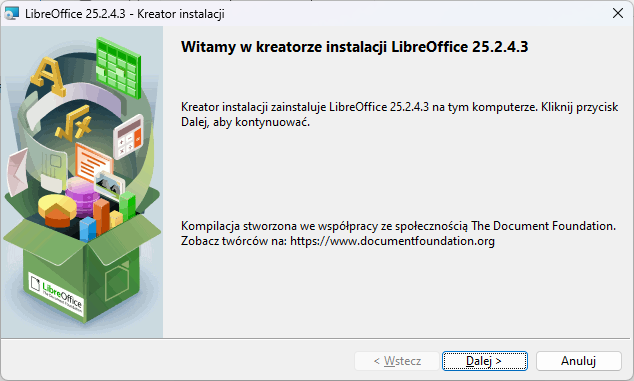
LibreOffice is a free office suite that you can use for both personal and commercial purposes. Below you will find a simple guide on how to install it on Windows 11.
1.Go to the LibreOffice download page
Open your web browser and go to the official website: LibreOffice.org.
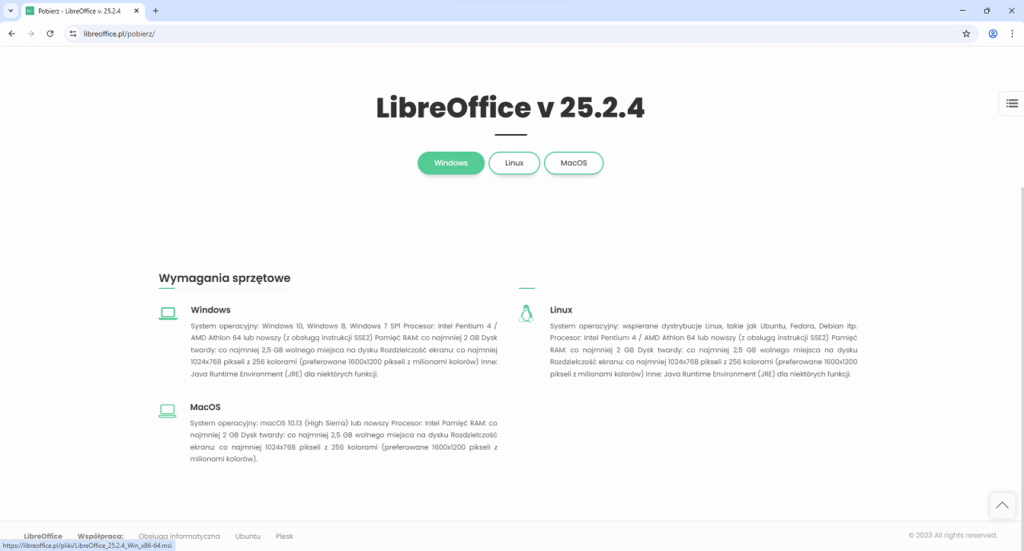
Then click on the Download LibreOffice tab.
2.Download the installer for Windows
Click the Windows button. The installation file will start downloading automatically. Wait until the download is complete.

3.Open the folder with the downloaded file
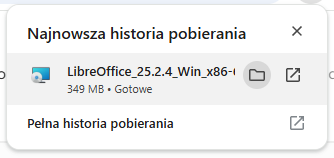
After the download is complete, click Show in folder or manually go to the Downloads folder. Find the file named LibreOffice_version.exe.
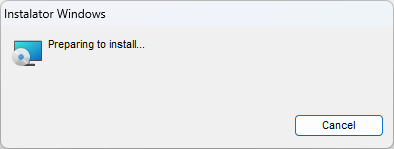
Double-click it to start the installation.
4.Run the installer
After a moment, the LibreOffice installation wizard will appear. Click the Next button to proceed to the next steps.

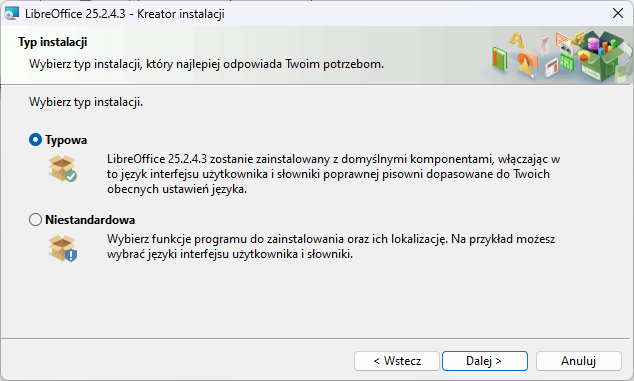
5.Choose the installation type
At this stage, you can choose:
Typical installation – recommended for most users.
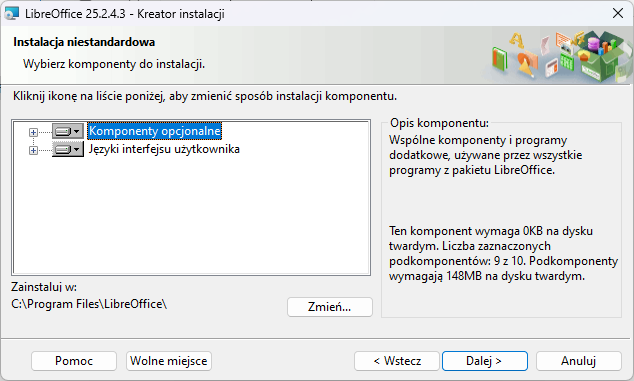
Custom installation – allows you to customize components, languages, and other elements.
For simplicity, select the Typical option and click Next.
6.Adjust additional options
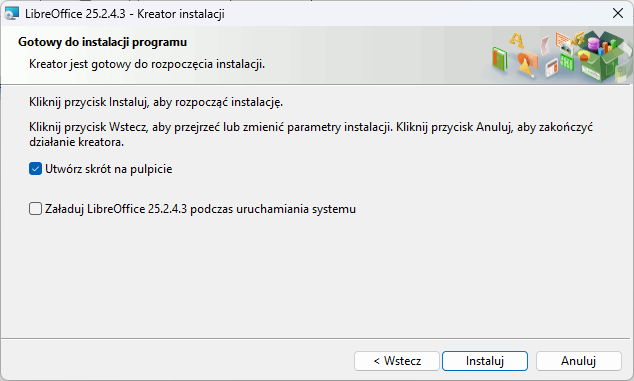
In the next window, you can select:
Create a desktop shortcut – recommended.
Load LibreOffice during system startup – if you want the program to start faster.
After selecting your preferred options, click Install.
7.Wait for the installation to complete
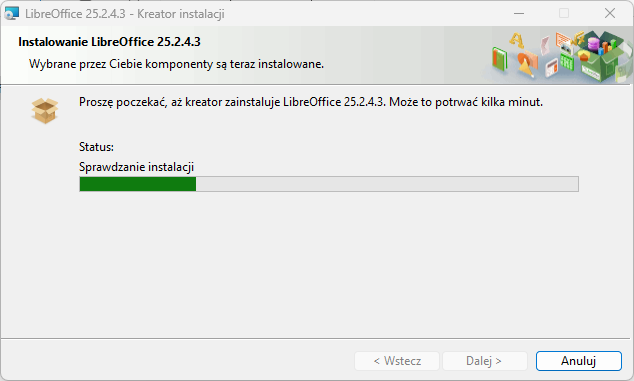
The installation will take a few moments. Do not close the installer during this time.
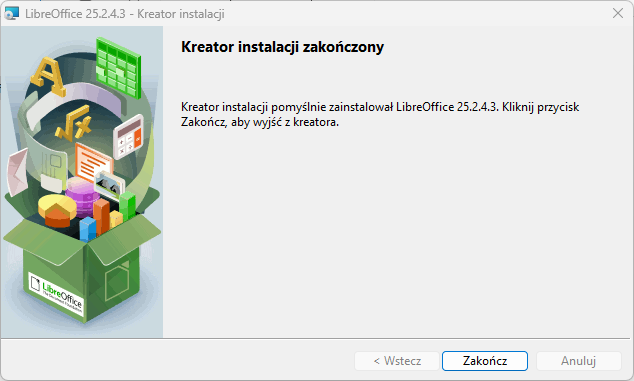
8.Finish the installation
After successful completion, you will see a confirmation message. Click the Finish button.
9.Launch LibreOffice
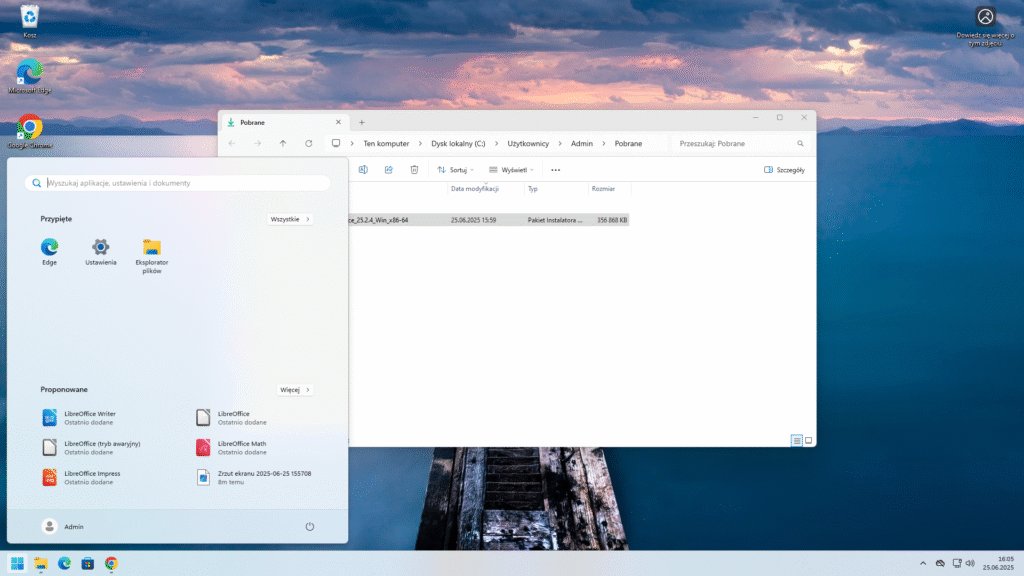
If you selected the option to create a shortcut, you will find the LibreOffice icon on your desktop. If not, click the Start button and type LibreOffice to launch the program.
After opening, you will see the start menu with access to:
- Text documents (Writer),
- Spreadsheets (Calc),
- Presentations (Impress),
- Drawings (Draw),
- Formulas (Math),
- Databases (Base).
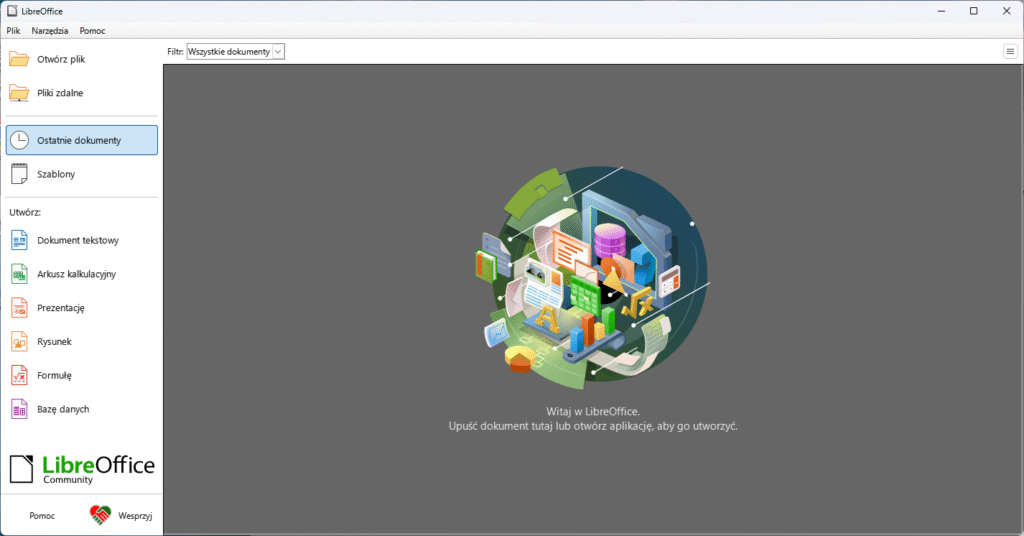
After opening LibreOffice, a window will appear with shortcuts to Text Documents, Spreadsheets, Presentations, Draw, Math, and Databases.