Inserting text, images LibreOffice Impress is a free and versatile alternative to Microsoft PowerPoint. It allows you to create multimedia presentations—from simple informational slides to animated shows with graphics, charts, and videos.
In this part, you will learn how to create slides, apply themes, add animations, and prepare a presentation for display or export. As a result, your presentations will be more visually appealing and functional.
Creating slides, themes, and animations
Adding slides
After launching Impress, the default title slide appears. To add another one:
select Insert → Slide or press Ctrl + M,
then use ready-made layouts such as: text, image, chart.
This makes creating presentations much faster.
Themes and layouts
Choose a ready-made theme via View → Slide Theme. You can also change the layout of a specific slide by right-clicking it and selecting Layout.
It is worth remembering that consistent themes improve the readability and appearance of the presentation.
Animations
To add an animation, go to Slide Show → Custom Animation. Then:
select an object (e.g., text or graphic),
choose the animation type: appear, fly in, rotate, etc.,
define entry, exit, or emphasis effects and their order.
Moreover, animations increase the dynamics of the presentation and help capture the audience’s attention.
Inserting text, images, and charts
Text:
Click inside a text box or choose Insert → Text Box to add a new element. You can modify the font, size, colors, alignment, and bullet points.
Images:
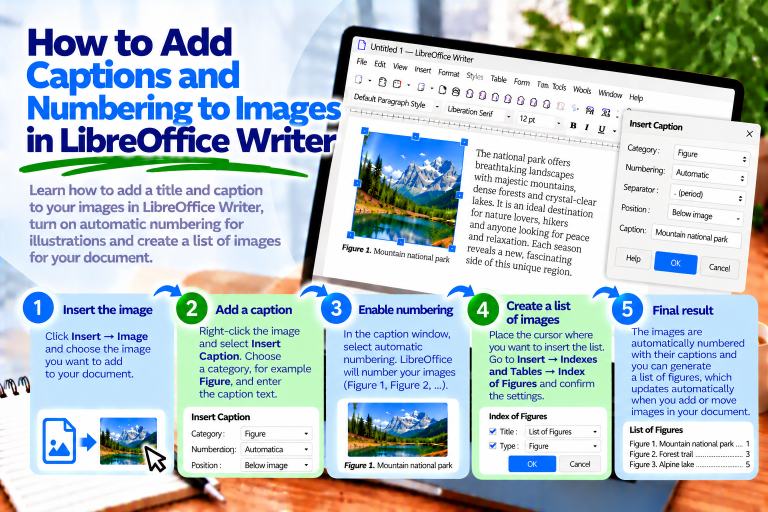
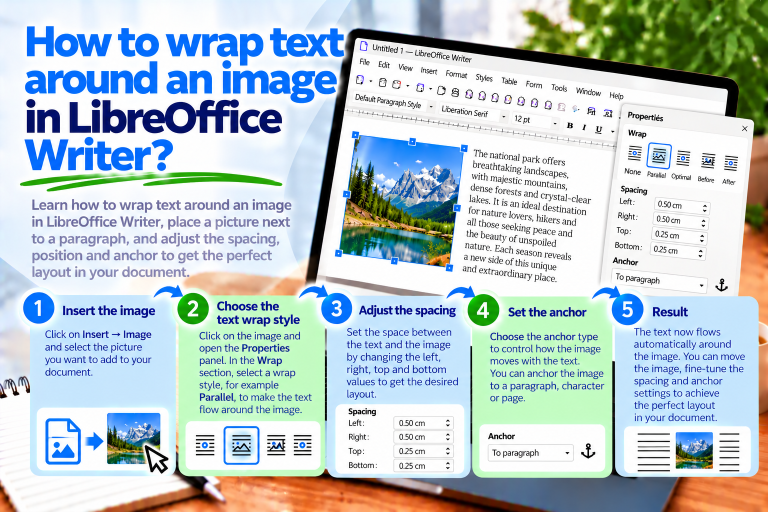
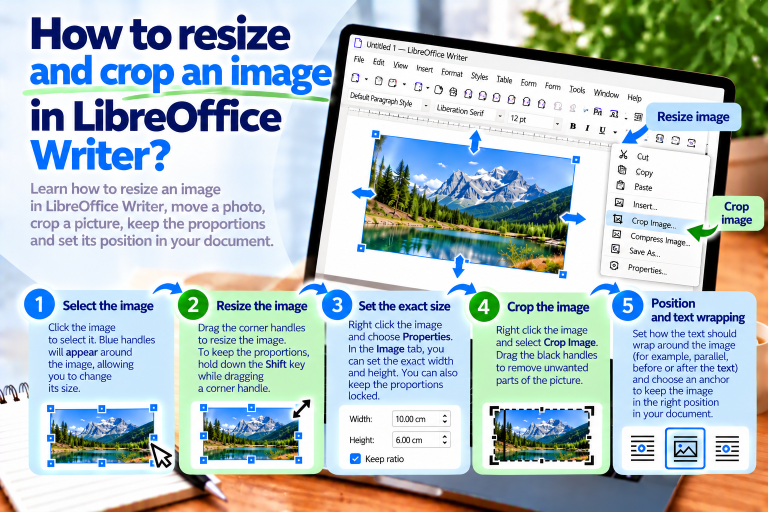
Insert graphics from disk via Insert → Image → From File. Objects can be scaled, rotated, and placed anywhere on the slide.
Charts:
Use Insert → Chart to add a bar, line, or pie chart. Impress opens a data editor based on Calc, allowing you to enter data directly. This ensures that your charts are clear and up to date.
Exporting and playing presentations
Running the presentation:
Full-screen slide show: F5 or Slide Show → Start from Beginning.
Show from the current slide: Shift + F5.
Export to PDF:
Select File → Export as PDF to save the presentation in a format convenient for sharing. You can choose options such as: one slide per page, password protection, transitions, and others.
Export to other formats:
Click File → Export and choose PNG, HTML, Flash, or other formats. As a result, you can easily embed the presentation on a website or send it for viewing without additional software.
In this part, you learned:
how to create and arrange slides,
insert text, images, and charts,
apply animations,
and export presentations to PDF and other formats.
With these skills, you will be able to create presentations tailored to any purpose—whether for school, professional, or personal use.
In the next part, we will move on to LibreOffice Draw—a tool for creating diagrams, flyers, and simple vector graphics.